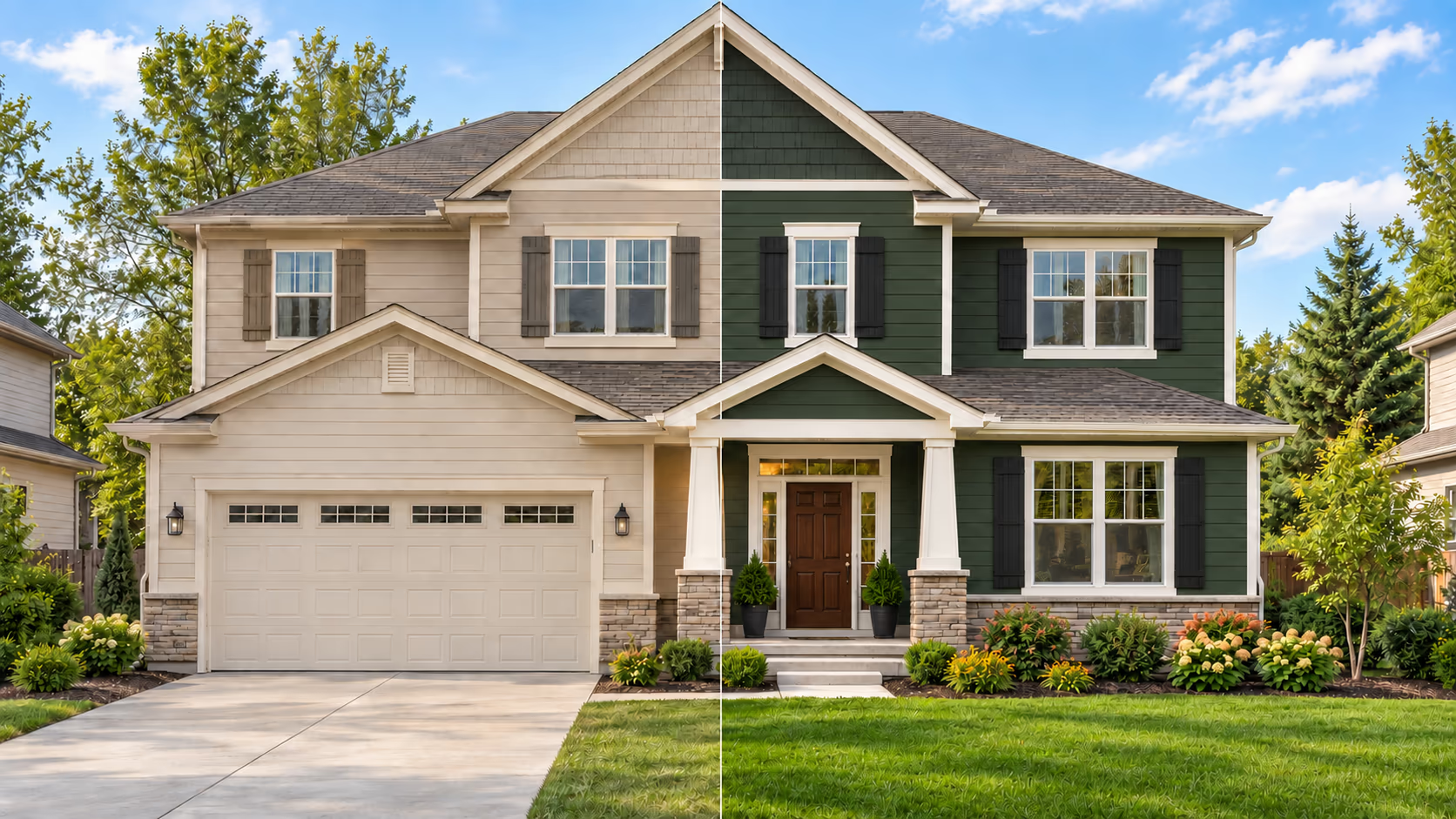
Want to virtually paint your house exterior before buying paint? A digital preview can help you compare siding, trim, front door, shutters, and garage door colors on a photo of your own house.
Use an AI exterior visualizer to compare broad color and material ideas, or choose a focused surface tool when you only want to recolor one area. Once you find a direction you like, use a paint-brand visualizer to identify available shades and test physical samples before making the final decision.
To virtually paint your house exterior, upload a clear, straight-on property photo to DecorAI's Exterior Redesign to compare complete color ideas, or choose surface editor or surface painting when you only want to change a selected area. Compare the siding, trim, front door, shutters, or garage door while keeping the roof, windows, brick, stone, driveway, and house shape unchanged. Use the preview to create a shortlist, then confirm the final color with a physical paint sample.
Choose the Right Exterior Paint Preview Method
The best method depends on whether you are comparing complete exterior ideas, changing one surface, looking for a purchasable paint color, or making the final decision.
| Tool or Method | Best Use | Main Limitation |
|---|---|---|
| AI exterior redesign | Compare broader changes to paint colors, materials, doors, trim, and exterior style | May change details beyond the requested paint color |
| Surface Editor | Apply a color or material to one selected surface | Does not provide an exact real-world paint match |
| Surface Painting | Recolor a selected surface while keeping its visible texture | Does not confirm whether the surface is suitable for painting |
| Paint-brand visualizer | Compare available colors from a specific manufacturer's catalog | Features, color information, and surface controls vary by brand |
| Physical paint sample | Confirm the final color on the actual house | Requires time to apply and review under different lighting |
Prepare a Clear Exterior Photo
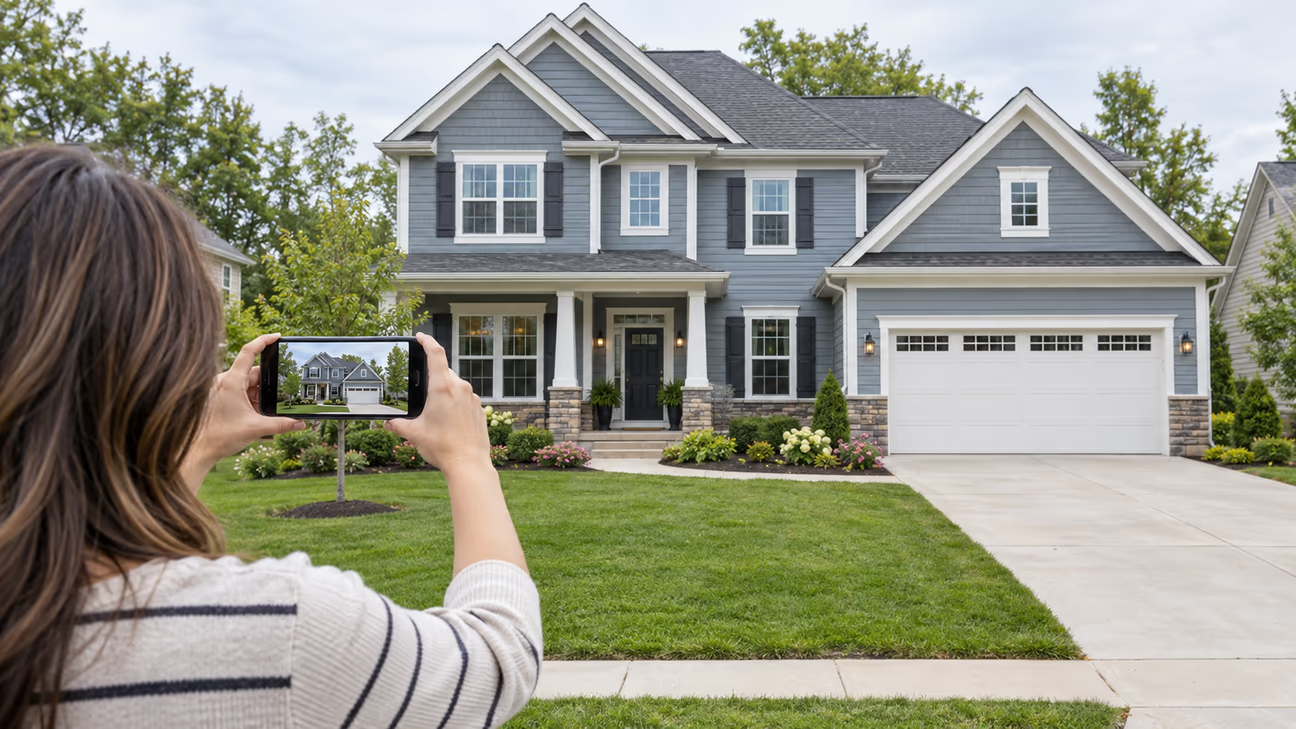
A clear photo helps the visualizer identify each surface and apply colors more accurately. Before taking the photo, decide which surfaces you want to recolor and which parts must remain unchanged. For example, you may want to change the siding, trim, and front door while preserving the roof, windows, brick, driveway, landscaping, and house shape.
Use these tips to prepare the photo:
Show the Full Exterior
Stand far enough away to capture the entire side you want to recolor. Include the roof, foundation, doors, windows, and garage where possible. A straight, front-facing photo is usually easier to edit than one taken from a sharp angle.
Keep the Camera Straight
Hold the camera straight and avoid tilting it upward or sideways. A tilted image can distort the walls and make individual surfaces harder to identify.
Use Soft Natural Light
Take the photo during the day when the exterior is evenly lit. A bright overcast sky often provides the clearest view. Avoid harsh sunlight, deep shadows, or strong color casts.
Move Unwanted Items
Move parked vehicles, trash bins, garden equipment, and temporary decorations where possible. Trees and existing landscaping can remain, but anything covering a large part of the house may affect the preview.
Keep the Photo Natural
Use the original photo without filters, color effects, or major brightness changes. Make sure the existing paint, materials, shadows, and textures remain clear so the visualizer can identify each exterior surface more accurately.
How to Virtually Paint Your House Exterior
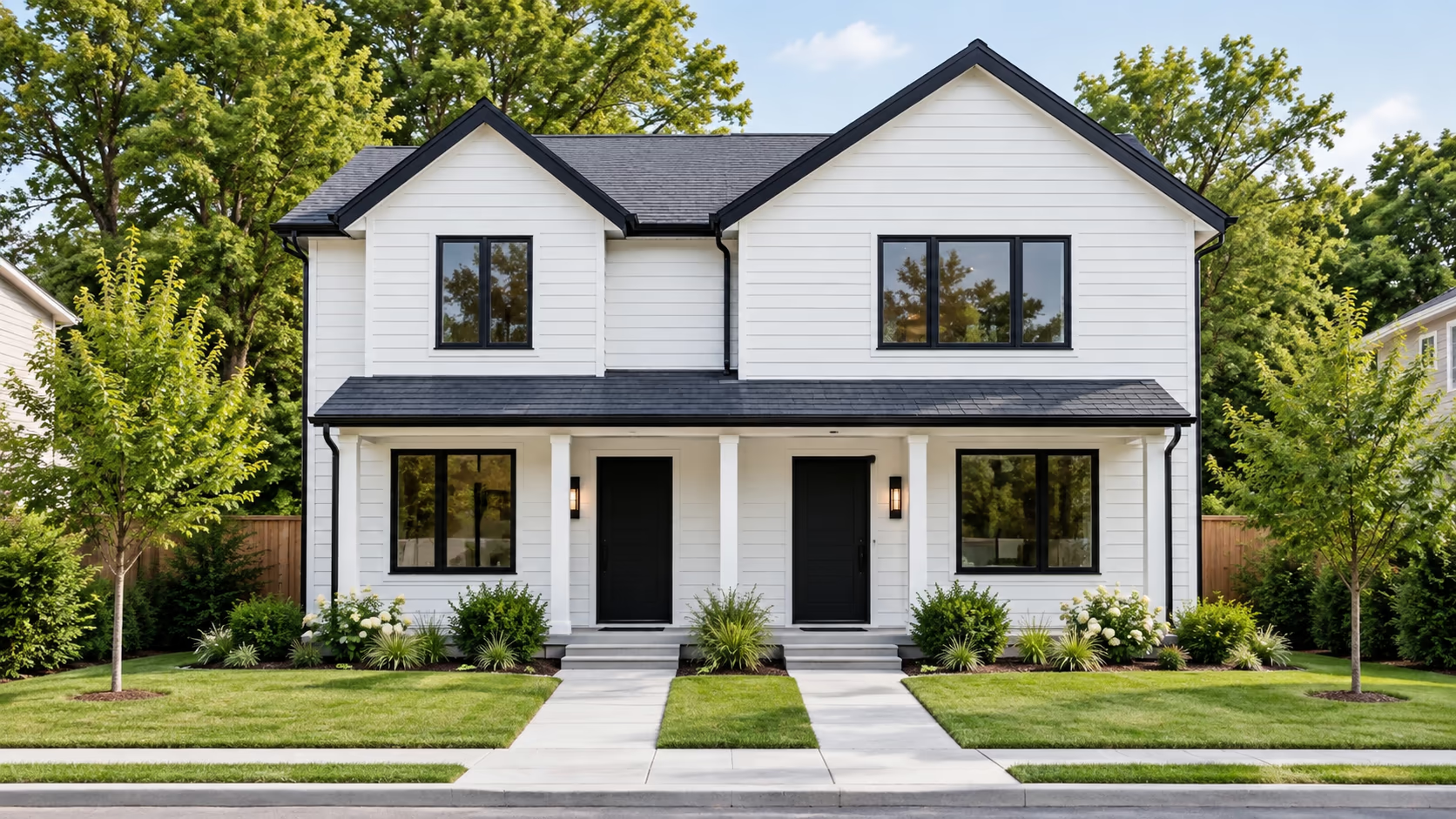
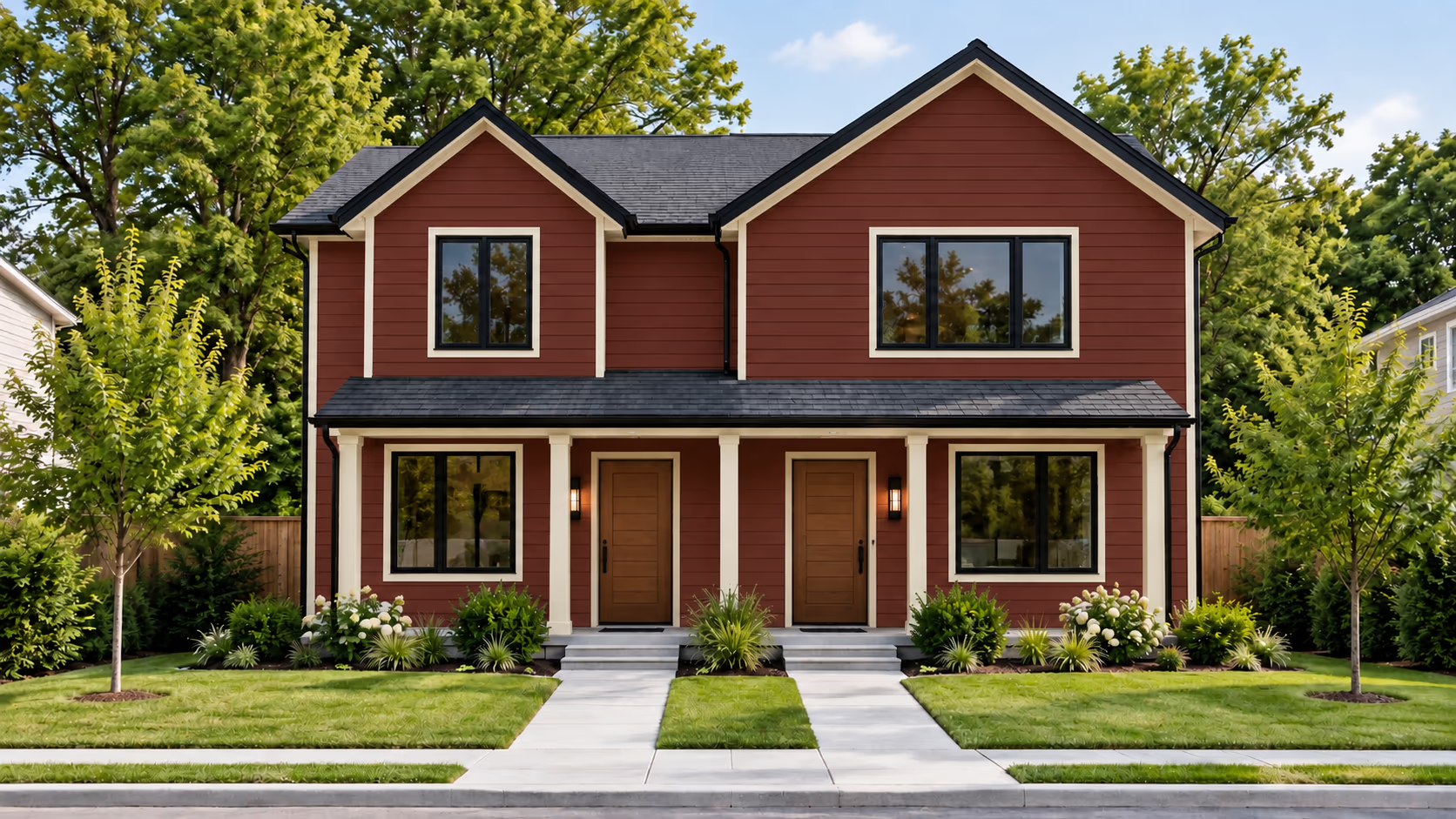
Follow these steps to create and compare exterior color previews.
1. Upload Your Exterior Photo
Upload the clear, well-lit photo you prepared. Use a photo of your own property rather than a sample house so you can judge the colors against the actual roof, brick, stone, windows, and landscaping.
2. Choose the Type of Preview
Use Exterior Redesign when you want to compare complete color and material combinations. Choose Surface Editor or Surface Painting when you only want to change one selected area.
3. Choose the Main Exterior Color
Start with the largest painted surface, such as the siding or stucco. Compare colors from the same family or with similar undertones, such as warm white, cream, light taupe, muted green, or soft gray.
4. Add Trim and Accent Colors
Choose the trim after selecting a possible main color. Low contrast creates a softer look, while stronger contrast makes windows, rooflines, columns, and corners stand out.
Add one accent color to a smaller area, such as the front door or shutters. Avoid using several strong accent colors on the same exterior.
5. Explain What Must Stay Unchanged
Tell the AI exactly which parts of the property it should preserve.
"Change only the siding, trim, and front door. Preserve the roof, brick, stone, windows, garage door, driveway, landscaping, house shape, and natural daylight."
Clear instructions reduce unwanted changes, but you should still check the generated image carefully.
6. Generate and Compare Several Versions
Change only one part of the color scheme in each version so you can see which choice improves the exterior.
- Keep the siding color and compare different trim colors.
- Keep the trim color and compare front-door colors.
- Test warmer and cooler versions of the same main color.
- Compare light and dark garage-door colors.
7. Compare Each Preview With the Original
Place the original photo beside each result. Remove any version that changes the roof, windows, brick, stone, landscaping, house proportions, or another feature that should remain the same.
8. Create a Final Shortlist
Choose the two or three combinations that work best with the property. Find similar purchasable shades in a paint manufacturer's catalog before testing them with physical samples.
How to Build an Exterior Color Palette
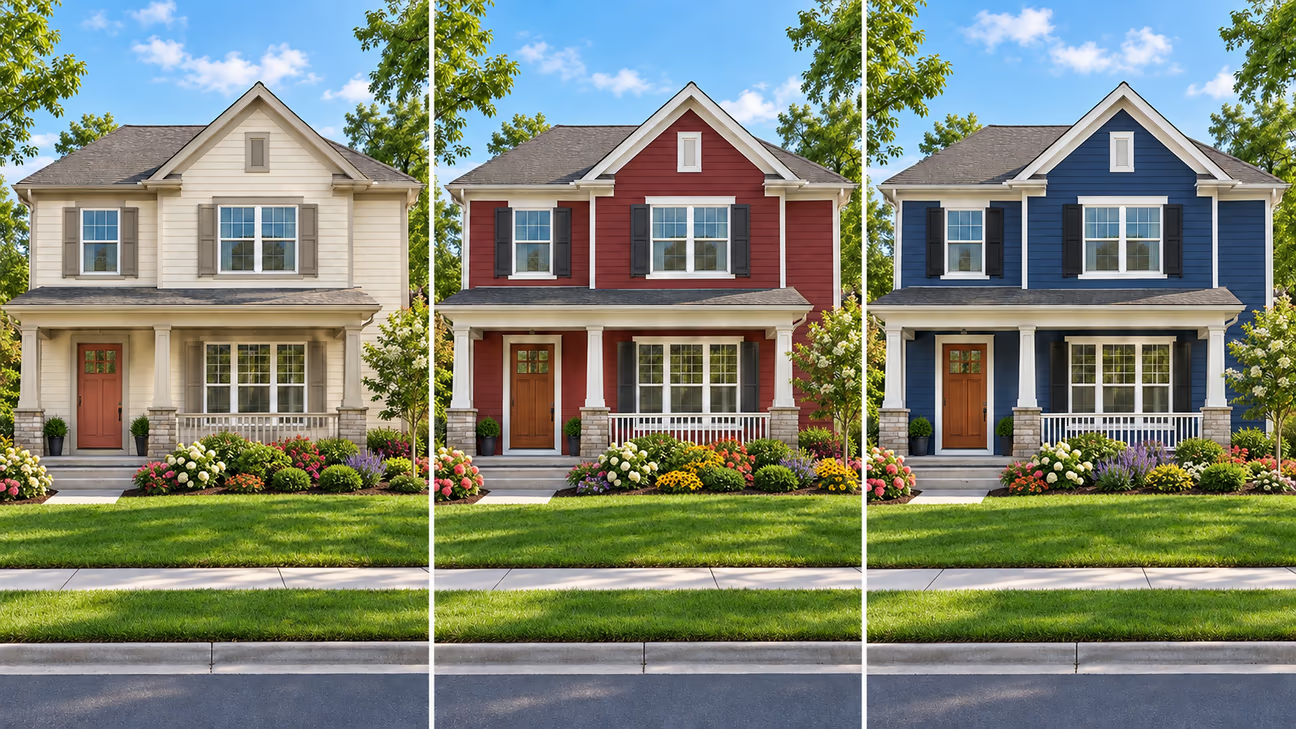
A simple exterior palette usually includes a main color, a trim color, and one accent color. Each color should also work with the roof, brick, stone, driveway, wood, and other materials that will remain unchanged.
Start With the Fixed Materials
Check the undertones in the permanent materials before choosing a paint color. For example, a warm brown roof may work better with cream, taupe, warm white, or muted green than with a cool blue-gray.
Look closely at:
- Roof
- Brick and stone
- Driveway
- Natural wood
- Metal finishes
- Established landscaping that will remain
Choose the Main Color
The main color covers the largest painted area, usually the siding or stucco. Choose a shade that works with the house style, fixed materials, natural light, surrounding landscape, and nearby homes. If the property is covered by HOA or historic-district rules, check the approved colors before making a final choice.
Select the Trim Color
Trim defines windows, rooflines, columns, corners, and other edges. Choose a trim color close to the main shade for lower contrast and a softer look. Use stronger contrast when you want the windows and rooflines to stand out. White is not the only option. Cream, beige, taupe, charcoal, and other muted shades can also work as trim.
Add an Accent Color
Use the accent color on one or two smaller areas, such as the front door or shutters. Choose a shade that stands out without clashing with the main color, trim, roof, or masonry. Treat a large garage door carefully because it may cover a major part of the facade. A garage door often looks more balanced when it matches the main color or trim instead of becoming a strong accent.
How to Use DecorAI for Exterior Paint Ideas
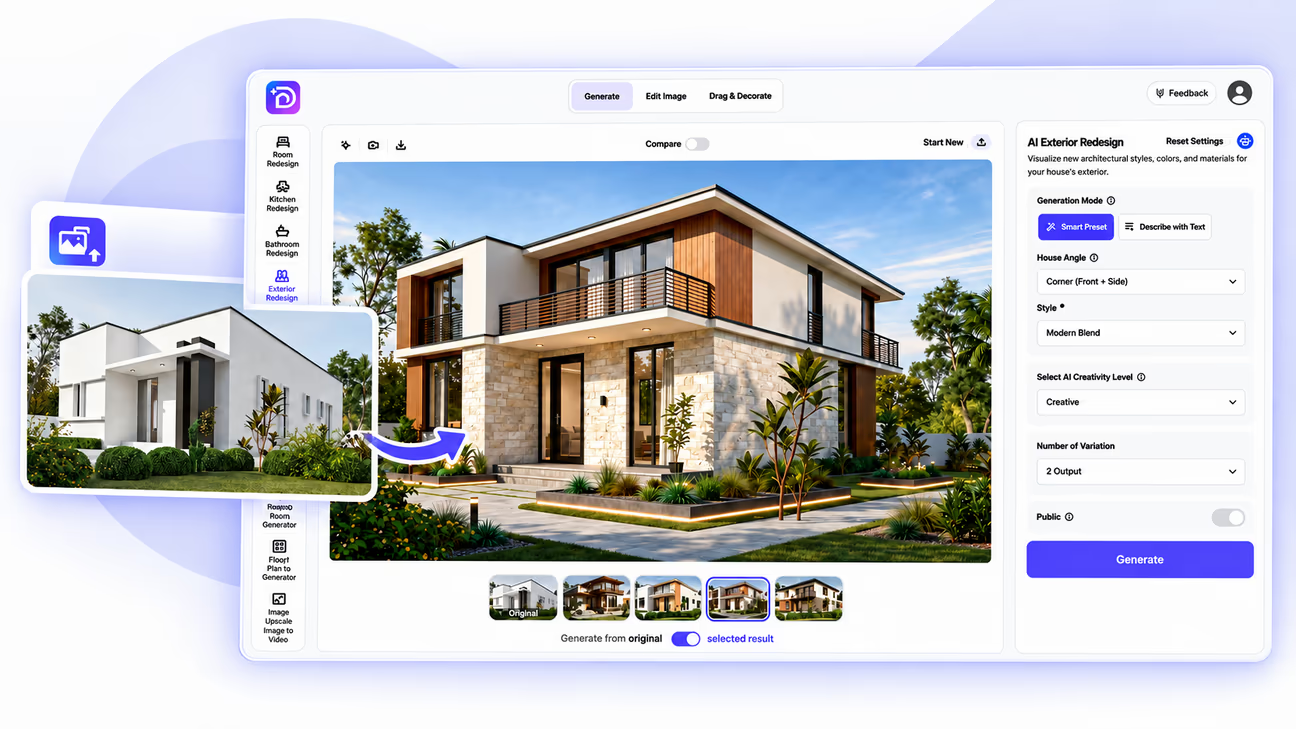
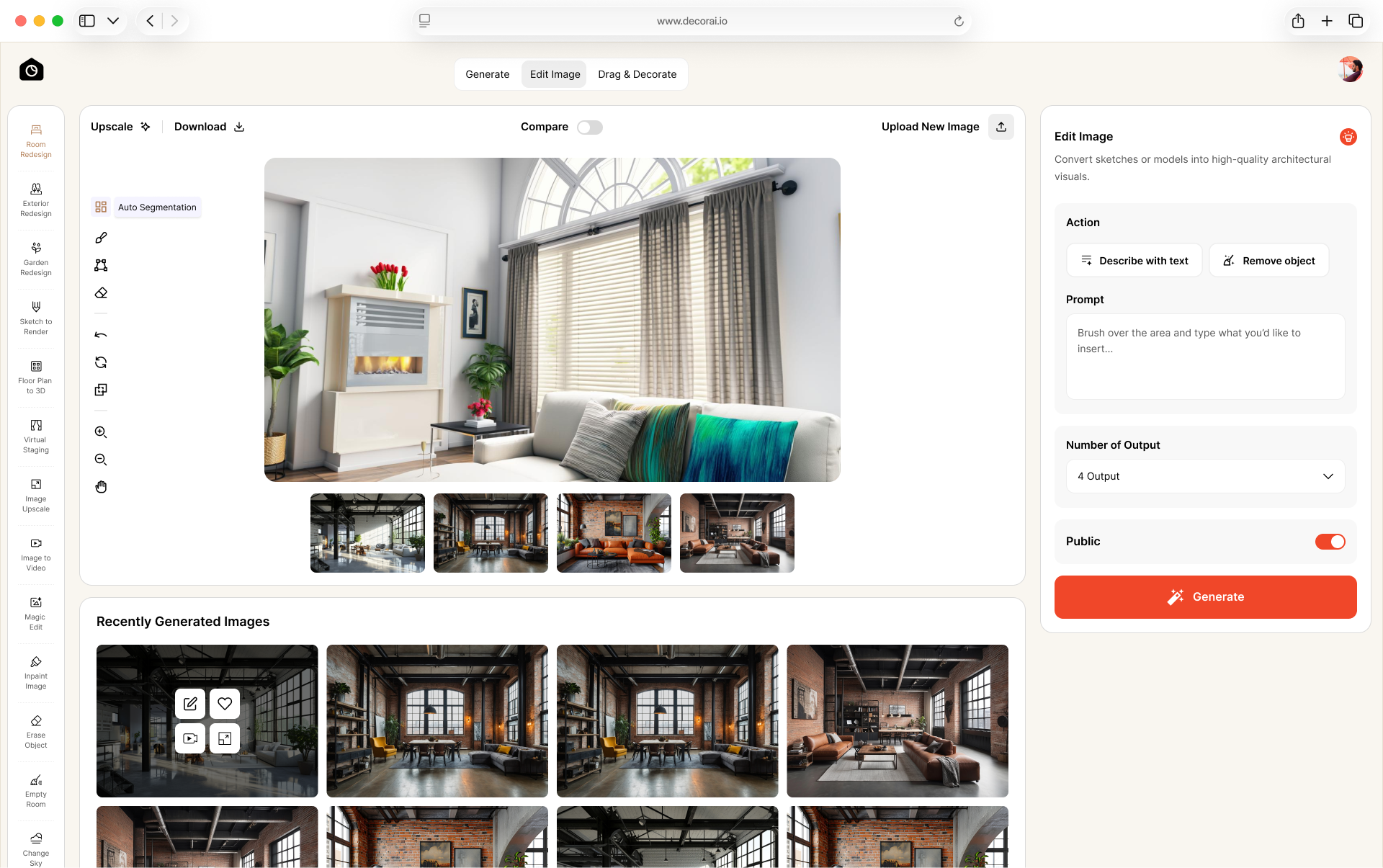
DecorAI offers three useful options for exterior color planning. Choose the tool based on whether you want to compare a complete exterior design or update one selected surface.
Exterior Redesign
Use DecorAI Exterior Redesign to compare complete exterior ideas involving siding colors, trim, doors, materials, and architectural styles. The tool provides 67 exterior styles, including Modern, Contemporary, Minimalist, Modern Farmhouse, Mediterranean, Colonial, Craftsman, Scandinavian, Coastal, Japanese, Painted Brick, Wood Accents, and more.
Because Exterior Redesign creates a complete visual concept, it may change materials or details beyond the paint color. Compare every result with the original house photo. Browse exterior design inspiration to compare colors, materials, and architectural styles before creating your own preview.
Surface Editor
Use Surface Editor when you want to apply a color or material to one selected surface. This is a better option when you want to update the siding, wall, or another defined area without redesigning the complete exterior.
Surface Painting
Use Surface Painting when you want to recolor a selected surface while keeping its visible texture. This can help you test a new color on a wall or other exterior surface without replacing the material in the image.
Example Prompt
Repaint the main exterior walls soft gray and use clean white on the trim. Change the front door to deep red. Preserve the roof, stone, windows, garage door, landscaping, house shape, and natural daylight. The prompt clearly states what should change and what should remain. However, check the result carefully because an AI-generated image may still alter other visual details.
Use DecorAI results as visual references, not as construction plans, structural guidance, cost estimates, or exact paint matches. If your project focuses on the lawn, plants, paving, patio, pool, or other yard areas, use the AI landscape design tool.
What to Check in an AI Exterior Preview
Compare every generated preview with the original house photo. If you notice a mistake, update your instructions or use a focused editing tool on the affected surface.
- Check whether the AI has:
- Changed the roof color or roofing material
- Moved, removed, or resized a window
- Changed the roofline or house proportions
- Covered natural brick or stone
- Recolored the wrong surface
- Removed mortar lines, wood grain, or other visible texture
- Added doors, windows, columns, or other architectural details
- Changed the driveway or landscaping
- Applied paint across the boundaries between siding, trim, brick, doors, or windows
How Accurate Are Virtual Exterior Paint Colors?
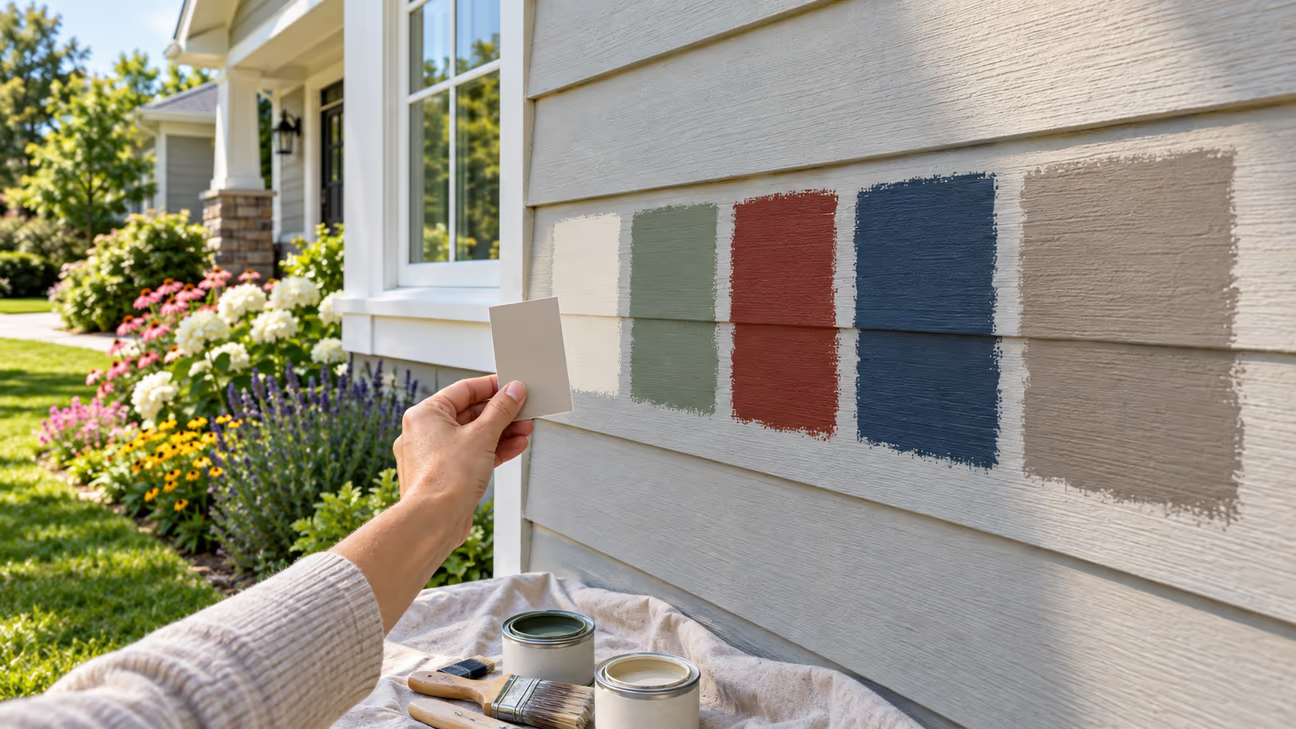
A virtual preview can help you compare color families, undertones, contrast, and complete exterior combinations. However, it cannot show the exact color you will see on the finished house.
Several factors can change how a paint color appears:
- Camera exposure and white balance
- Sunlight, shade, and time of day
- Screen brightness and display settings
- Nearby brick, stone, roofing, and landscaping
- Surface texture and condition
- Paint finish
- Weather conditions
The same shade may look warmer in direct sunlight and cooler in shadow. Flat paint usually reflects less light, while satin, semi-gloss, and gloss finishes may appear brighter in certain conditions. Use the virtual result to create a shortlist, then compare the closest official paint colors with physical samples on the property. Learn more about how light affects paint color before comparing your digital preview with physical samples.
Before You Buy Paint
A digital preview can help you narrow your choices, but it should not be used to approve the final paint color.
Do not expect an AI visualizer to reproduce an exact paint name, code, or digital color value. Find the closest shade in a paint manufacturer's catalog and confirm it with a physical sample.
Complete these final checks before ordering paint for the entire exterior:
- Reduce your digital options to two or three color combinations.
- Find the closest available colors in a paint manufacturer's catalog.
- Confirm the recommended surface preparation, primer, and finish.
- Test physical samples on large boards or small exterior areas.
- View each sample in morning light, direct sun, shade, and evening light.
- Make the final decision from the real sample, not the screen.
Ready to compare exterior colors? Upload a clear house photo to DecorAI and create several options before buying paint or beginning the project.
Frequently asked questions
An AI exterior paint visualizer applies new color ideas to a photo of your house. It helps you compare siding, stucco, trim, front door, shutter, and garage door colors before buying paint.
Yes. Upload a clear house photo to DecorAI, choose the correct house angle, and describe the colors you want. You can also select an exterior style and generate up to 4 variations for comparison.
New users receive 1-day trial with 3 designs to start. Paid plans include unlimited AI designs, commercial use, no watermarks, and access to every tool.
Depending on the photo and tool, you may be able to preview siding, stucco, trim, shutters, front doors, garage doors, porch columns, fences, brick, and wood. Results depend on how clearly the surface appears in the uploaded image.
Yes, a visualizer may show possible color changes on brick, stucco, or wood. However, the preview cannot confirm whether the real surface should be painted. Ask a paint professional or contractor about preparation, primer, coating, and maintenance requirements.
DecorAI can create a realistic visual reference, but it cannot guarantee an exact paint match because lighting, camera settings, screen settings, surface texture, nearby materials, and paint finish affect.
Yes. Use DecorAI to compare ideas and create a shortlist, then test physical samples on the house. Check each sample in morning light, direct sunlight, shade, and evening light before choosing the final color.