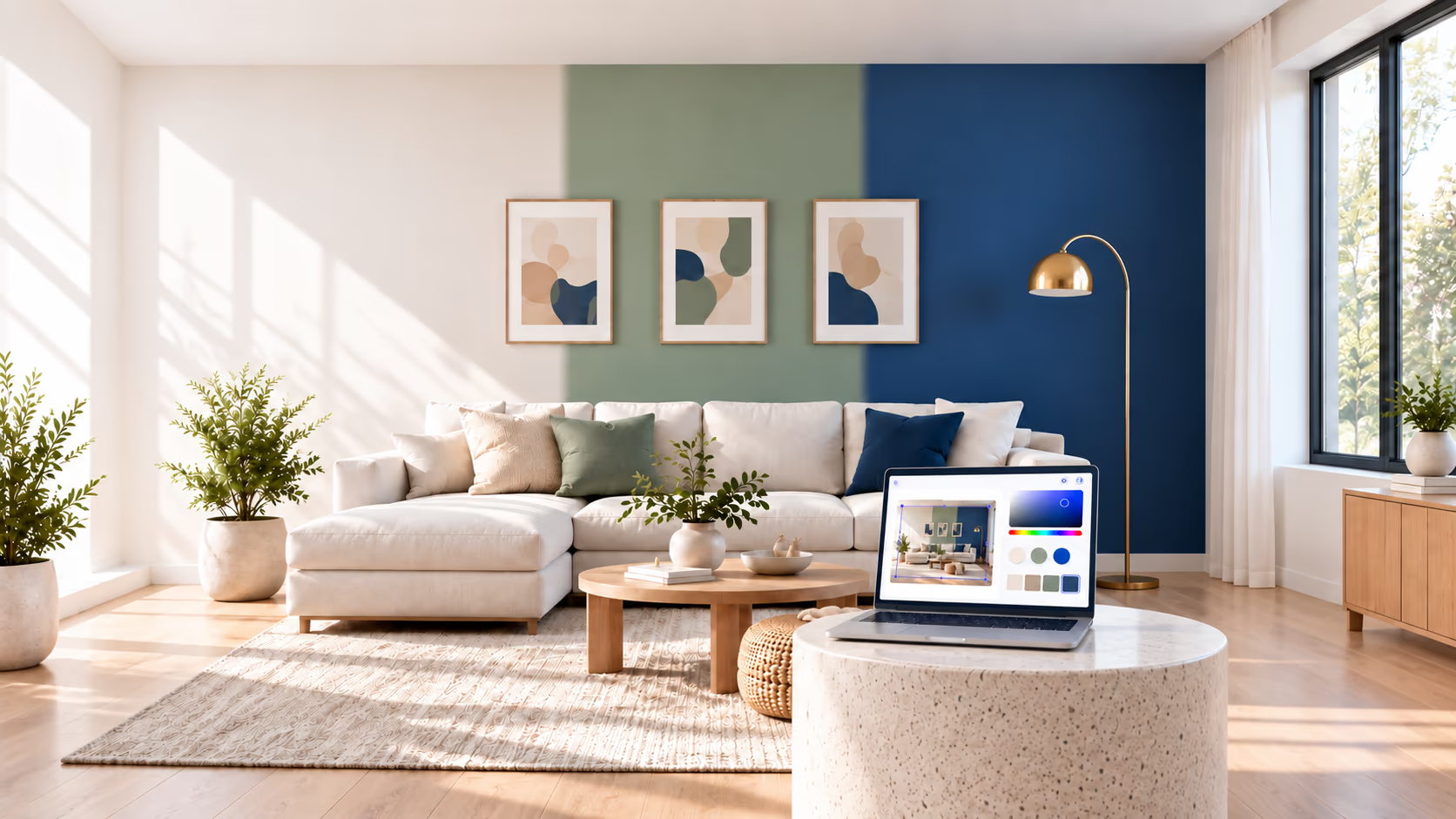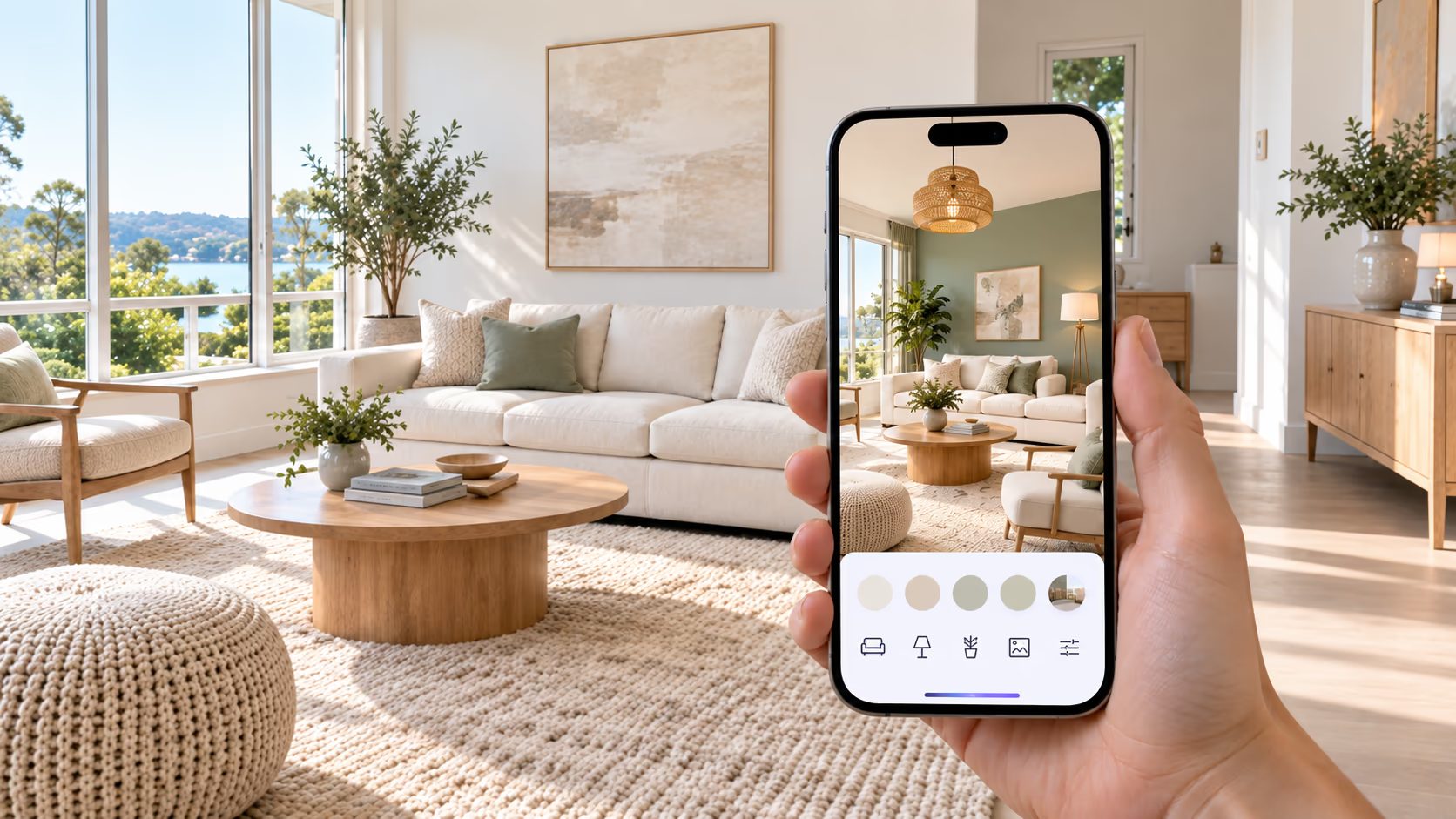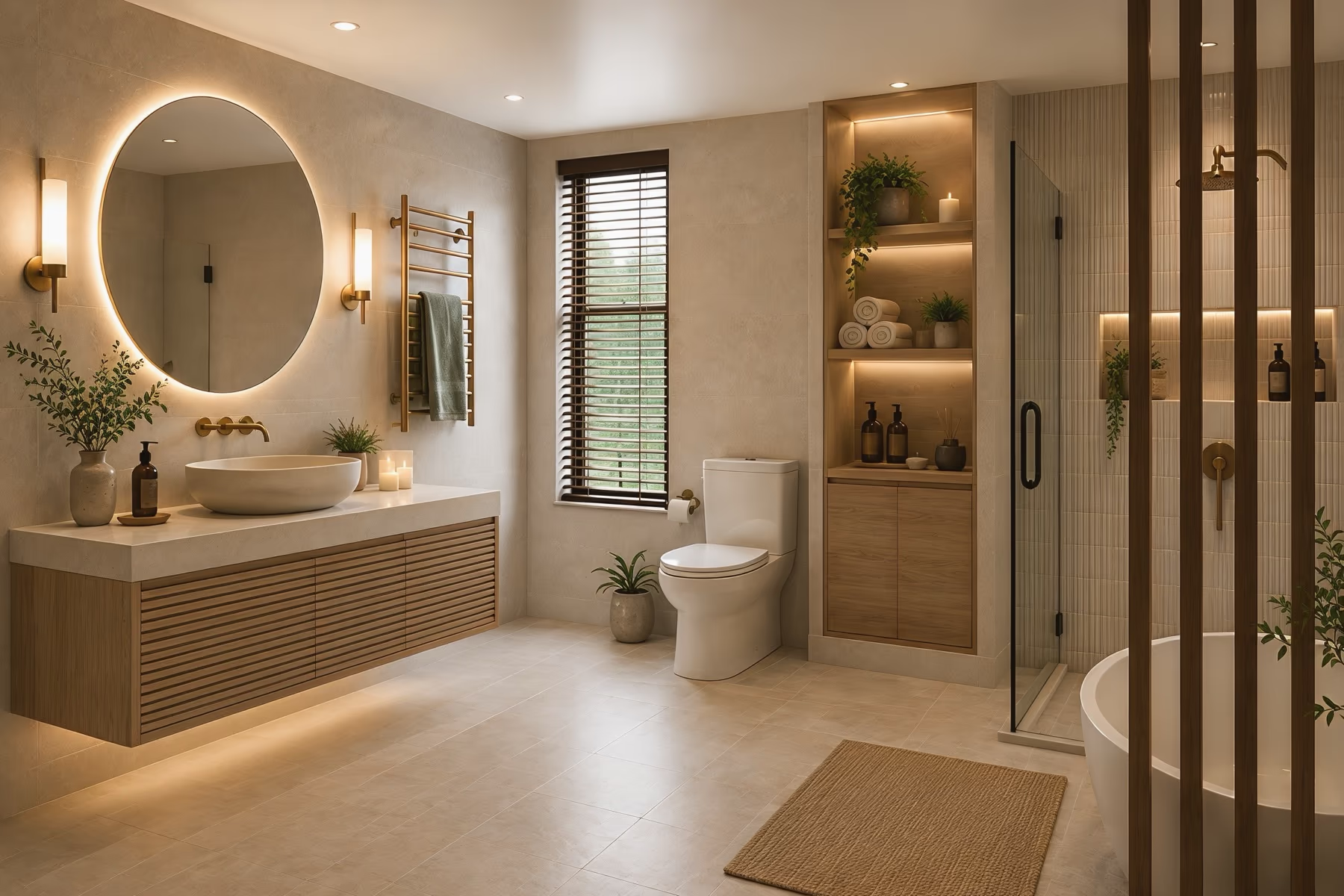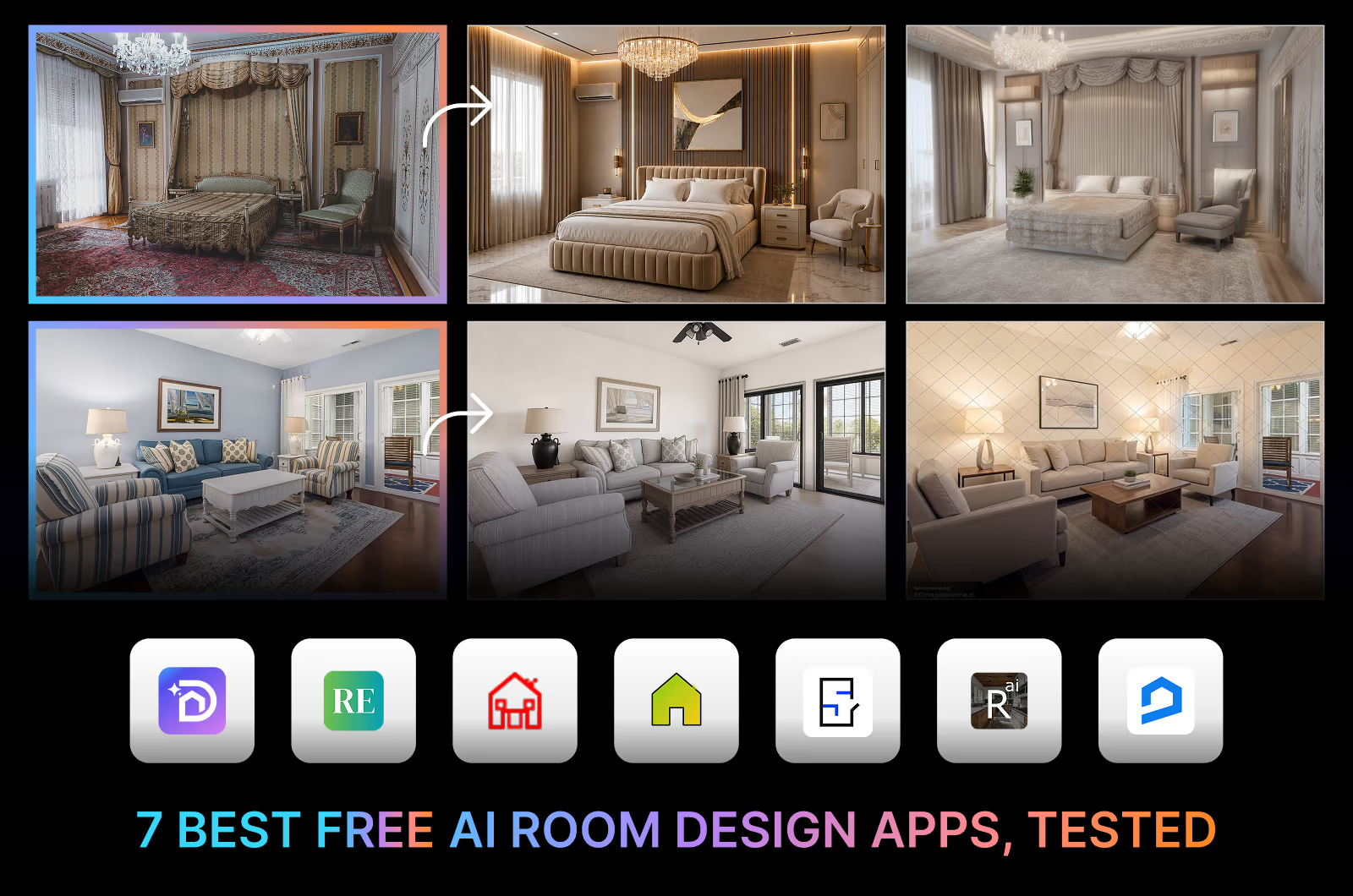
Want to learn how to decorate with AI in 2026? Upload your room photo to DecorAI and try different colors, furniture, and styles before buying anything.
This guide shows you how to create a preview, check what changed, and use your favorite ideas. You'll also learn what AI cannot confirm and what to check before shopping.
To decorate with AI, choose a design mode, select a style, and generate a room preview in DecorAI. Keep the ideas you like and check for unwanted changes. Confirm measurements, product details, and material samples before buying.
Choose How You Want to Decorate with AI
Start with a room photo, an empty space, a sketch, or a floor plan. Choose the DecorAI mode based on your starting point and what you want to change. A furnished room photo works for trying a new look, while an empty room photo gives you a starting point for furniture ideas. A sketch or floor plan is useful for seeing a design you have not built yet.
Need inspiration before you start? Browse the DecorAI Inspiration Gallery for room styles, colors, and furniture arrangements.

Here are some examples of the different design options of DecorAI:
1. Sketch to Interior
Turn a rough sketch into a furnished room preview. Upload your drawing to see ideas for furniture, lighting, colors, and finishes. Compare the result with your sketch and decide which details you want to develop further.
2. Room Redesign
Try a new look in your existing room. Upload a photo and compare different wall colors, furniture, and decor without moving anything. Start with a clear goal, such as replacing dark furniture or trying a warmer color palette.
3. Empty Room to Interior
See how an empty room could look furnished. Add a photo, choose a style, and review ideas for seating, storage, rugs, and lighting. Use the preview to shortlist furniture types, then measure the available space before choosing actual pieces.
4. Freestyle Interior
Not sure which look you want? Try Freestyle Interior for different decorating ideas. Save the colors, furniture, and arrangements you like. A result might suggest a combination you had not considered, such as a patterned rug beside simple furniture.
5. Style Changer
Compare a different style using your room photo. Try Scandinavian, boho, minimalist, or industrial interior design and see which direction suits your taste. Look at specific details, such as wood finishes, fabrics, and lighting, to decide what you would keep.
6. Floorplan to Interior
Use a floor plan to create an interior preview. Review furniture arrangements and finishes, then check them against the original measurements before making plans. Treat the generated image as a visual reference rather than a measured layout or construction drawing.
Compare each generated image with your original. Windows, doors, and other room details may change, even when you only wanted a new decorating style.
It's Your Room, Your Choice
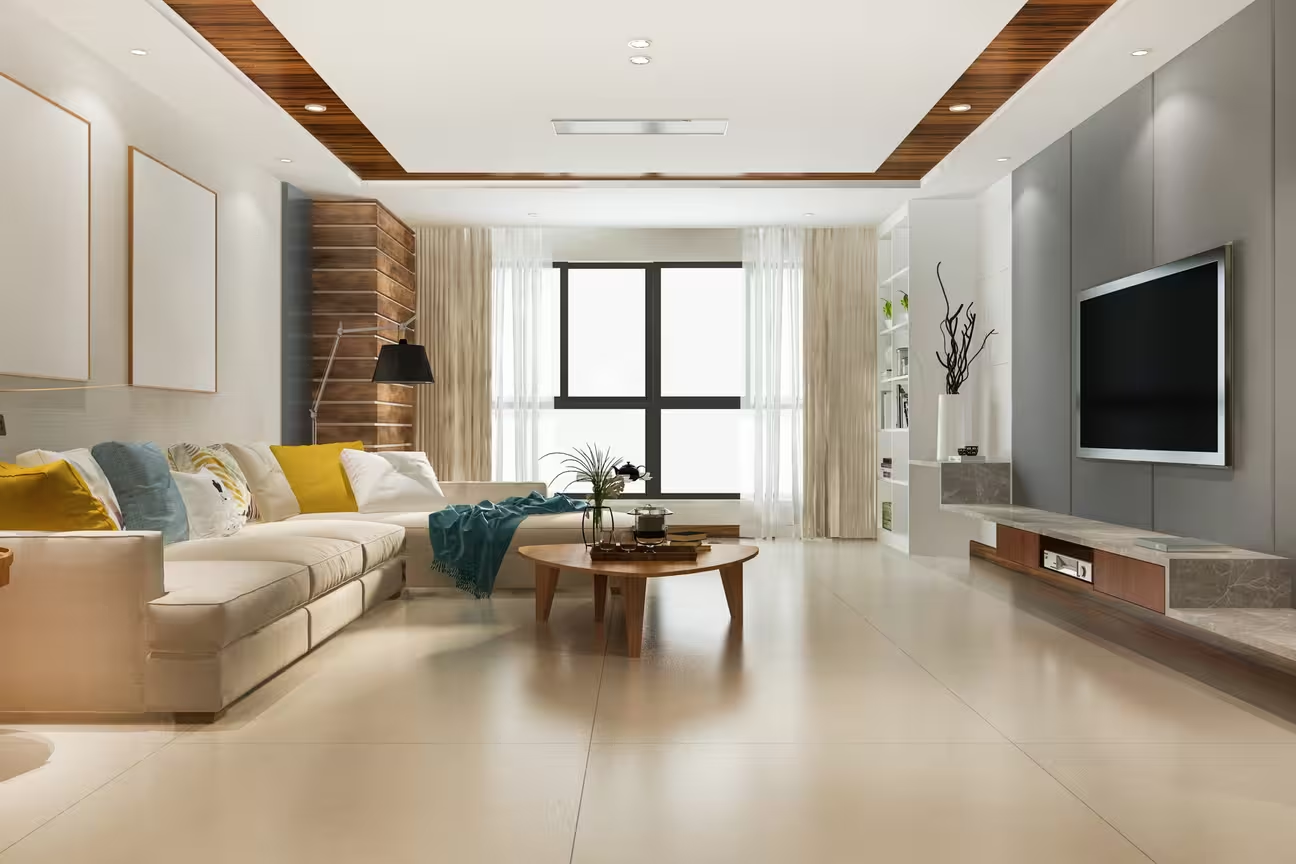
Pick the room you want to update and decide what needs changing. A bedroom might need warmer colors, a kitchen could benefit from different cabinet finishes, or a bathroom may need a fresh tile combination.
DecorAI supports 129 space types and 54 interior styles. Upload your photo through AI Room Design and use these options as a starting point:
- Bedroom: Try bedding, wall colors, furniture, and lighting in styles such as Scandinavian, minimalist, or contemporary. Choose a direction from the interior style library.
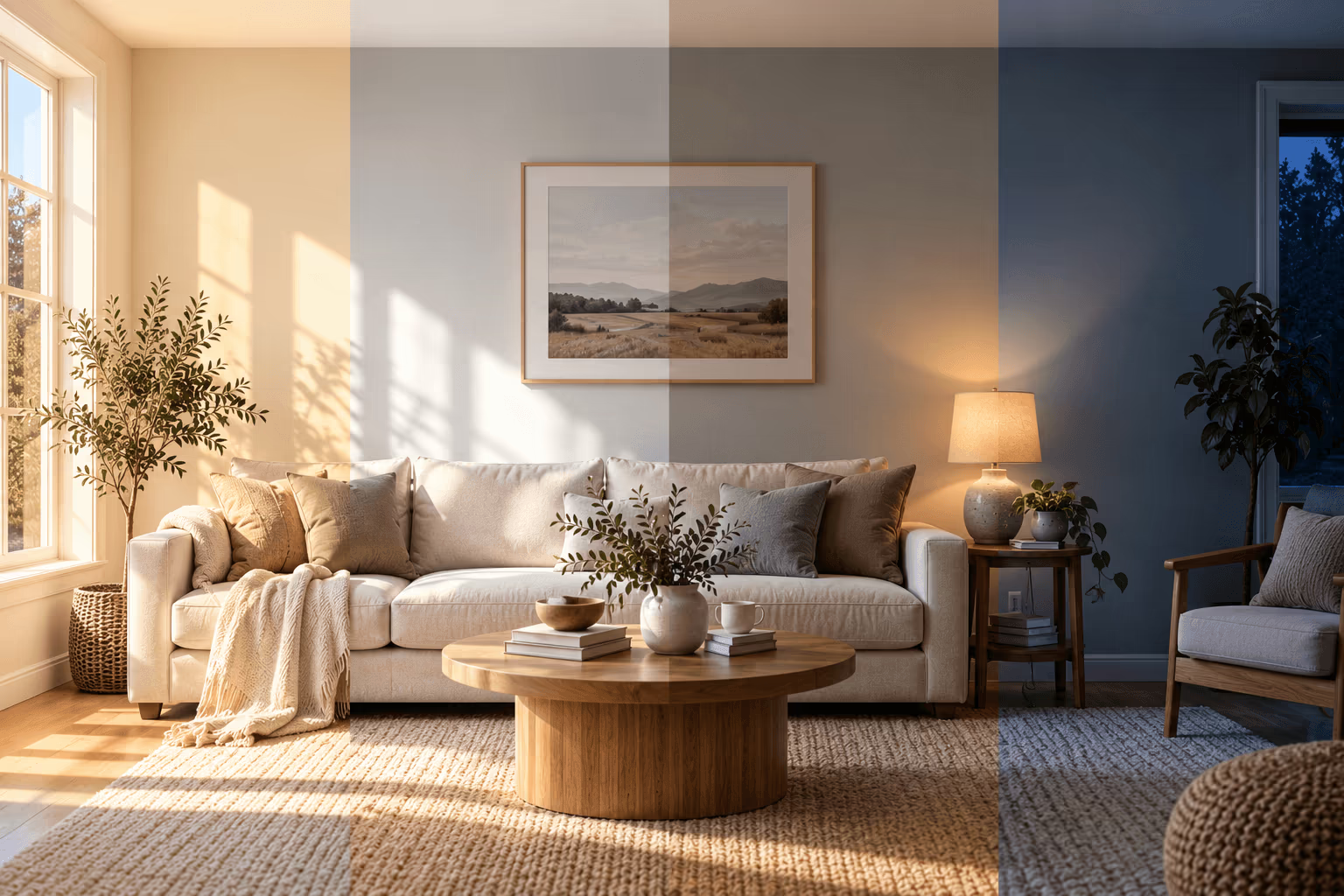
- Living Room: Compare sofas, rugs, storage, and lighting. Test modern, boho, or industrial looks using the same room photo.
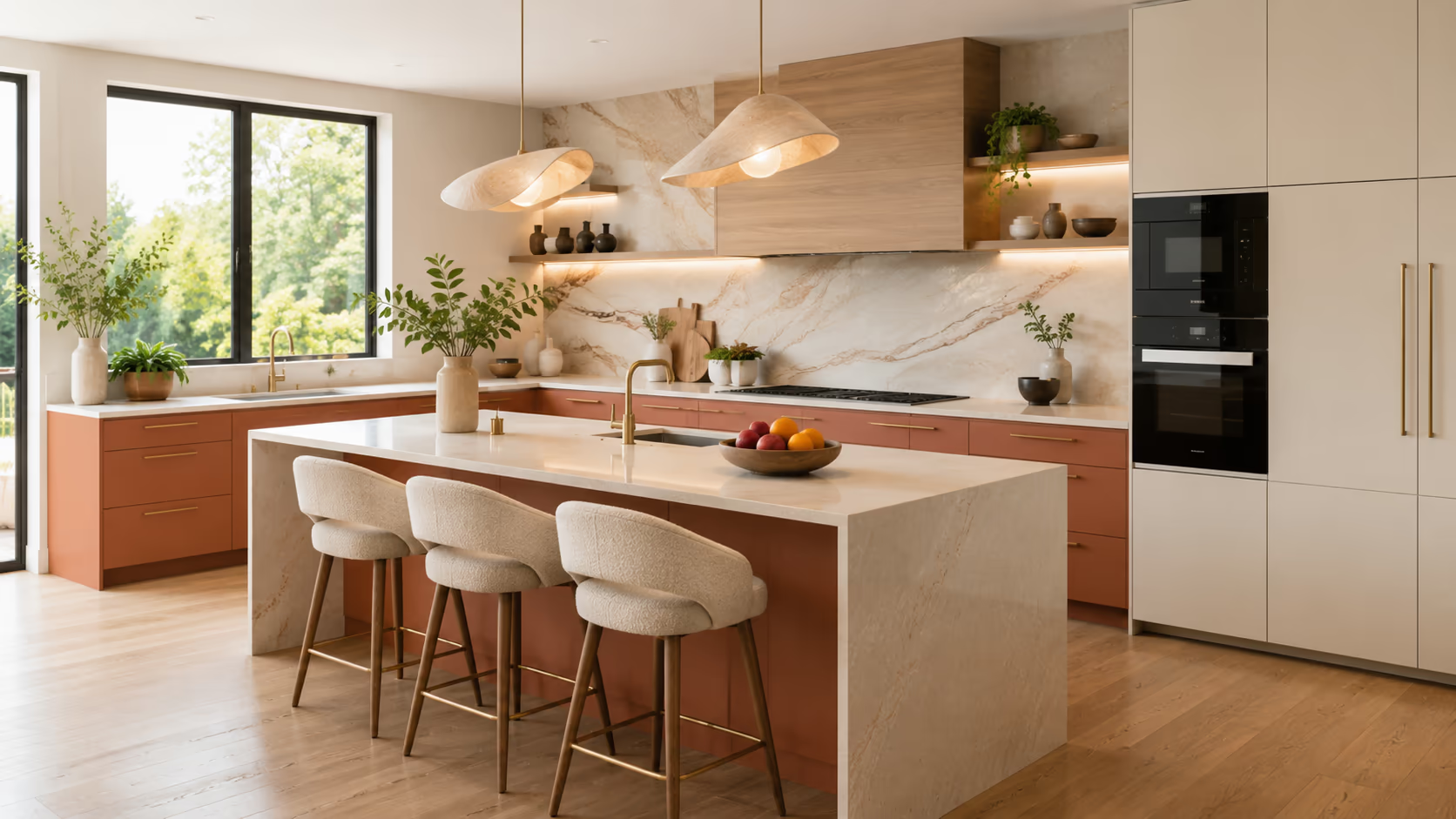
- Kitchen: Choose from 7 kitchen types and 10 kitchen styles. Compare 15 cabinet colors, 7 cabinet styles, 11 countertop options, 8 backsplash options, and 9 flooring options.
- Study Room: Preview desks, shelving, seating, and lighting with a simple or more decorative interior style.
- Dining Room: Try table shapes, chair styles, rugs, and pendant lights. Compare finishes that work with the nearby living room or kitchen.
- Bathroom: Choose from 6 bathroom types, 7 bathroom styles, 6 tile styles, and 5 color themes. The bathroom settings also include 3 redesign scopes.
Pick from 54 Interior Styles
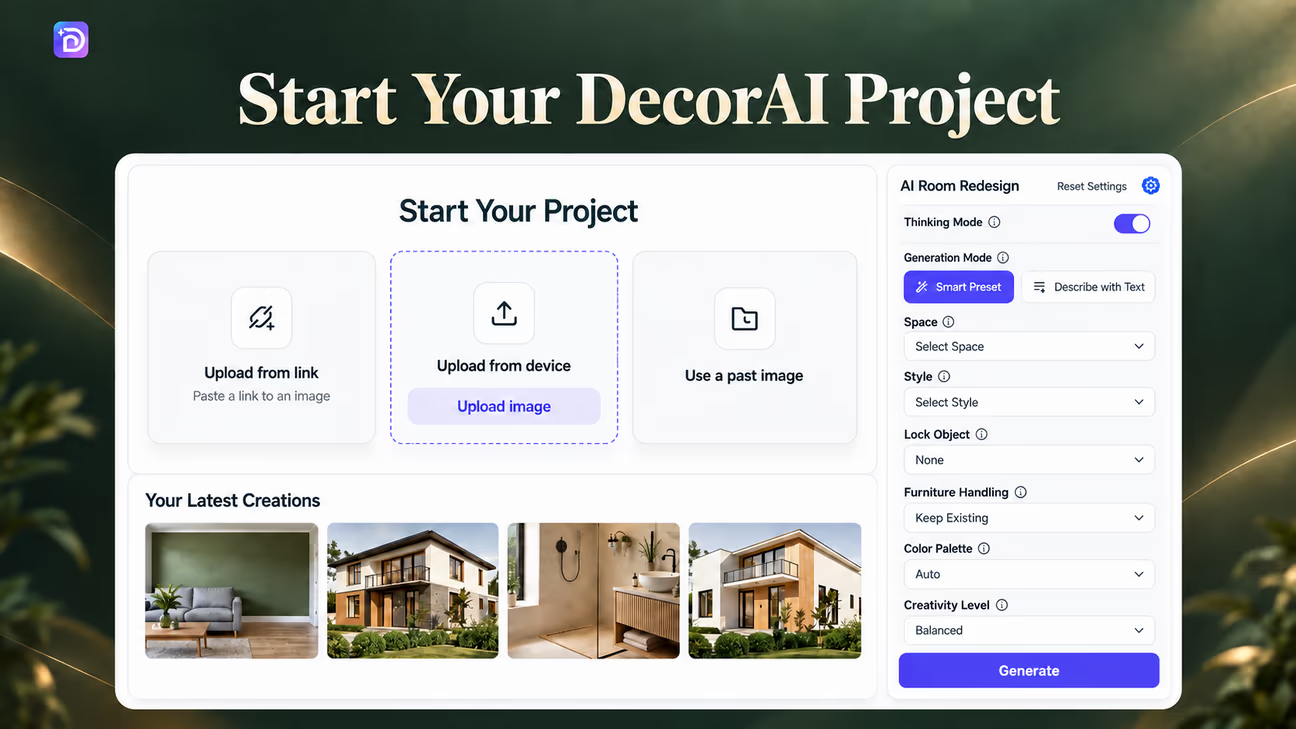
Choose a style based on the colors, materials, and furniture you enjoy. DecorAI offers 54 interior styles, so you can compare different looks using your room photo.
Start with a few options that interest you:
- Scandinavian: Light colors, natural wood, and simple, comfortable furniture.
- Modern: Clean lines, neutral colors, and furniture with simple shapes.
- Minimalist: Fewer decorative items, uncluttered surfaces, and a limited color palette.
- Industrial: Exposed brick, metal details, wood, and textured finishes.
- Bohemian: Layered fabrics, patterns, plants, and a mix of furniture styles.
- Contemporary: Current furniture shapes, mixed materials, and simple decorative details.
Prefer to work without a named style? Choose No Style. Compare the result with your original photo, since this option does not guarantee that the layout or every room detail will stay unchanged.
Save the details you like in each version. You might prefer Scandinavian colors with contemporary furniture rather than following one style throughout the room.
Customize Your Furniture, Down to the Details
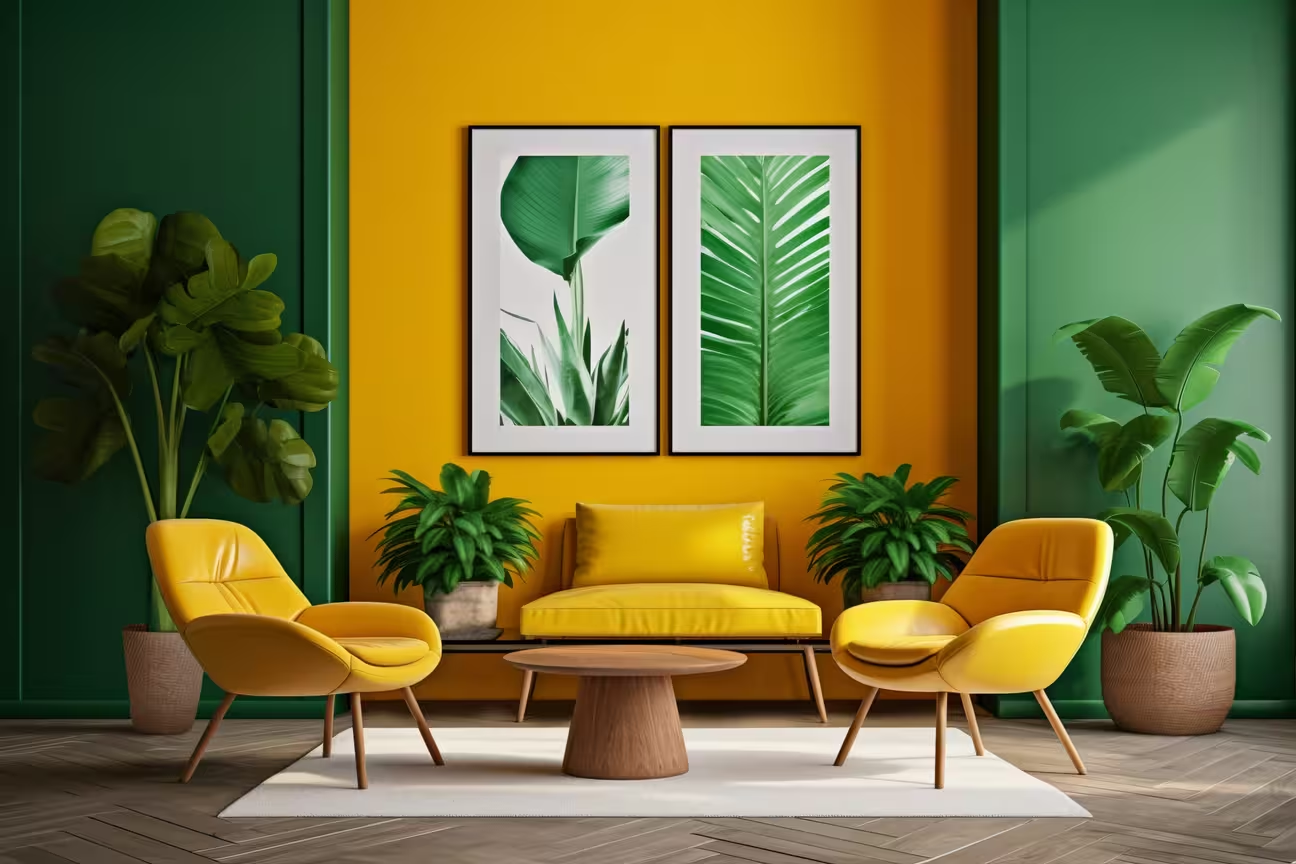
Compare furniture ideas before deciding what to keep or replace. A different sofa, bed, or storage unit can change the look of a room, but you may only need to update a few pieces. DecorAI includes 16 furniture item options. Start with the pieces that matter most to your room, then review how their colors, shapes, and finishes look together.
- Choose furniture types: Try beds, sofas, tables, storage, and other pieces that suit how you use the room.
- Upload furniture images: Preview how a piece could look beside your existing decor. The image does not confirm its size or fit.
- Compare arrangements: Try different furniture positions and decide which ideas you prefer. Check room dimensions, walking space, and door clearance separately.
- Save useful details: Keep the combinations you like as references when shopping or discussing the room with a designer.
Final Output of Design with Smart AI Tools
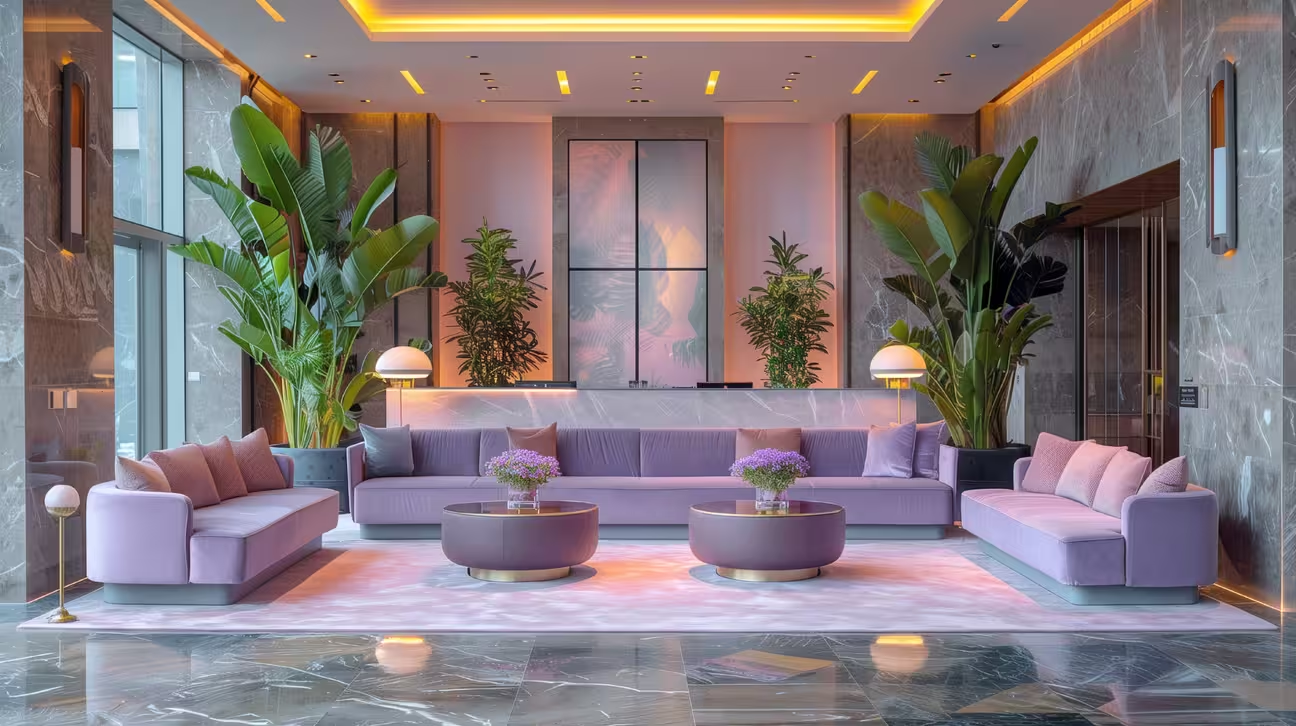
Once you have a preview you like, check the room details before saving it. Compare windows, doors, ceiling lines, and built-in features with your original photo. Correct unwanted changes before preparing the image to share.
1. Place Furniture: Preview selected furniture in the room and review its appearance and position. Confirm actual dimensions separately before buying.
2. Upscale: Increase the image resolution if you need a larger version. Check the upscaled result for changes to textures and small details.
3. Download: Save your preferred result to compare ideas or share with a designer. Keep the original photo alongside it so the proposed changes are clear.
Why Choose DecorAI?
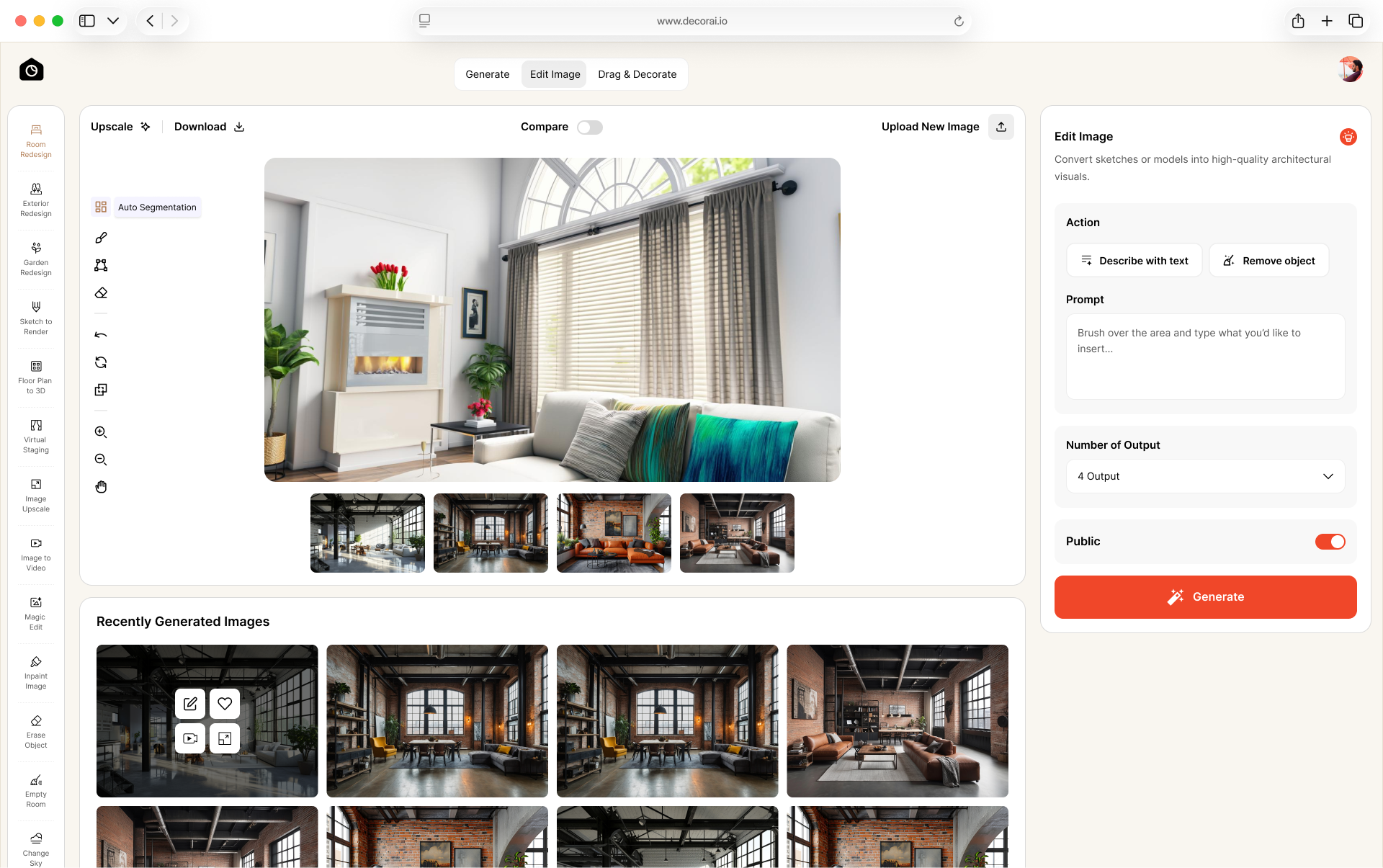
DecorAI combines room previews with tools for editing specific details. Try a decorating idea, then use Magic Edit, Erase Object, Surface Painting, or Relight Image to make further changes.
Homeowners can compare ideas before shopping. Interior designers can use the previews to discuss furniture, colors, and finishes with clients. For alternatives and layout-preservation findings, read our AI interior design tools comparison.
Advantages of Using DecorAI
- Compare before committing: Try different decorating ideas before spending money on furniture or materials.
- Get a quick first preview: Typical generation time is 30 seconds, though individual results may take longer.
- Start with your own room: Use your photo and preferences as the starting point rather than relying only on inspiration images of other homes.
- Build a clearer design brief: Save the details you like and share them with a designer, decorator, or household member.
- Follow a simple workflow: Upload a photo, choose your settings, and generate a preview. Review the result before deciding what to use.
Flexible Pricing for All Types of Designs

Start with the trial to test your room photo, or choose a subscription for continued use. Check the DecorAI pricing page for current features and billing terms.
1-Day Trial
The trial includes 3 credits. Use them to try the app and review your results before choosing a paid plan. A payment card is required to begin the trial; check when billing starts and how to cancel.
Monthly Plan: $24/month
The monthly plan includes unlimited AI image designs and 20 AI videos. Choose this option if you prefer monthly billing while working on your decorating ideas.
Half-Yearly Plan: $120
The six-month plan includes unlimited AI image designs and 120 AI videos. Consider it if you expect to use DecorAI over several months. Review the payment schedule and renewal terms before subscribing.
Yearly Plan: $240
The yearly plan includes unlimited AI image designs and 240 AI videos. Annual billing suits homeowners planning several room updates and interior designers working on ongoing projects. Use it to compare decorating ideas, revisit saved designs, and make further edits as your plans develop. A full year of access gives you time to work on different spaces at your own pace.
Use a clear, unfiltered photo with the camera level and clutter removed. Describe what you want to change and what should stay. Keep the same photo and adjust one setting at a time, then check the result for unwanted changes.
What AI Room Designs Cannot Do
A room preview shows a decorating idea, but it cannot confirm hidden conditions, product availability, or whether every room detail stayed unchanged.
AI Cannot See Hidden Room Details
AI uses what is visible in your photo. Behind walls and beneath floors, important details remain out of view. A photo may not clearly show:
- Concealed wiring and plumbing
- Structural supports inside walls
- Hidden moisture damage or leaks
- The extent of wall damage
- Floor level differences
- The condition of underlying materials
AI May Create Products That Do Not Exist
Furniture, lamps, and cabinets in an AI image may not be real products. Use them as style references and find available items with similar shapes, colors, and materials. Follow the buying checks in the next section before ordering.
AI May Change Parts of the Room
Compare the generated image with your original photo. Check windows, doors, fireplaces, built-in storage, ceiling lines, stairs, and wall shapes for changes you did not request.
How to Use AI Before Buying Furniture or Materials
1. Choose Your Favorite Ideas
Create two or three room previews and save the furniture shapes, colors, and finishes you like. Combine details from different results rather than copying one design exactly.
2. Measure the Room
Record wall lengths, door and window positions, and available floor space. Leave enough clearance for walking and opening doors, drawers, and cabinets. Measure ceiling height for tall storage or hanging lights. Check furniture dimensions separately against the available space. Measure the delivery route through doorways, hallways, and stairs too.
3. Check Products Before Ordering
Find real products that match your chosen ideas. Confirm each product's:
- Size
- Materials and finish
- Price
- Stock availability
- Delivery details
Request paint, flooring, or fabric samples where available. Check them in your room, and save product links alongside your previews.
Start Decorating with AI Today
Now you know how to decorate with AI, put your ideas to the test. Try a new wall color, furniture arrangement, or style in your own room photo with DecorAI. Save what you love, then check measurements and samples before buying.
Upload Your Photo and Create Your First Room Preview
Frequently asked questions
Upload a room photo, choose a design mode and style, then generate a preview. Review the result, save the ideas you like, and check measurements before buying.
Choose based on your task: room previews, furniture placement, or measured floor planning. Our AI interior design tools comparison covers features and hands-on findings.
AI previews can look realistic but may change room details or show furniture at the wrong scale. Compare the result with your original photo and check actual measurements before buying.
Yes. Upload a clear photo and select the changes you want. Compare the preview with the original to spot anything you did not ask to change.
DecorAI supports furniture-image uploads for visual previews. Check actual product dimensions separately; appearance in the image does not confirm fit.
AI is useful for decorating ideas and visual references. An interior designer can assess practical needs and plan the details. Structural, electrical, and plumbing work requires qualified professional advice.