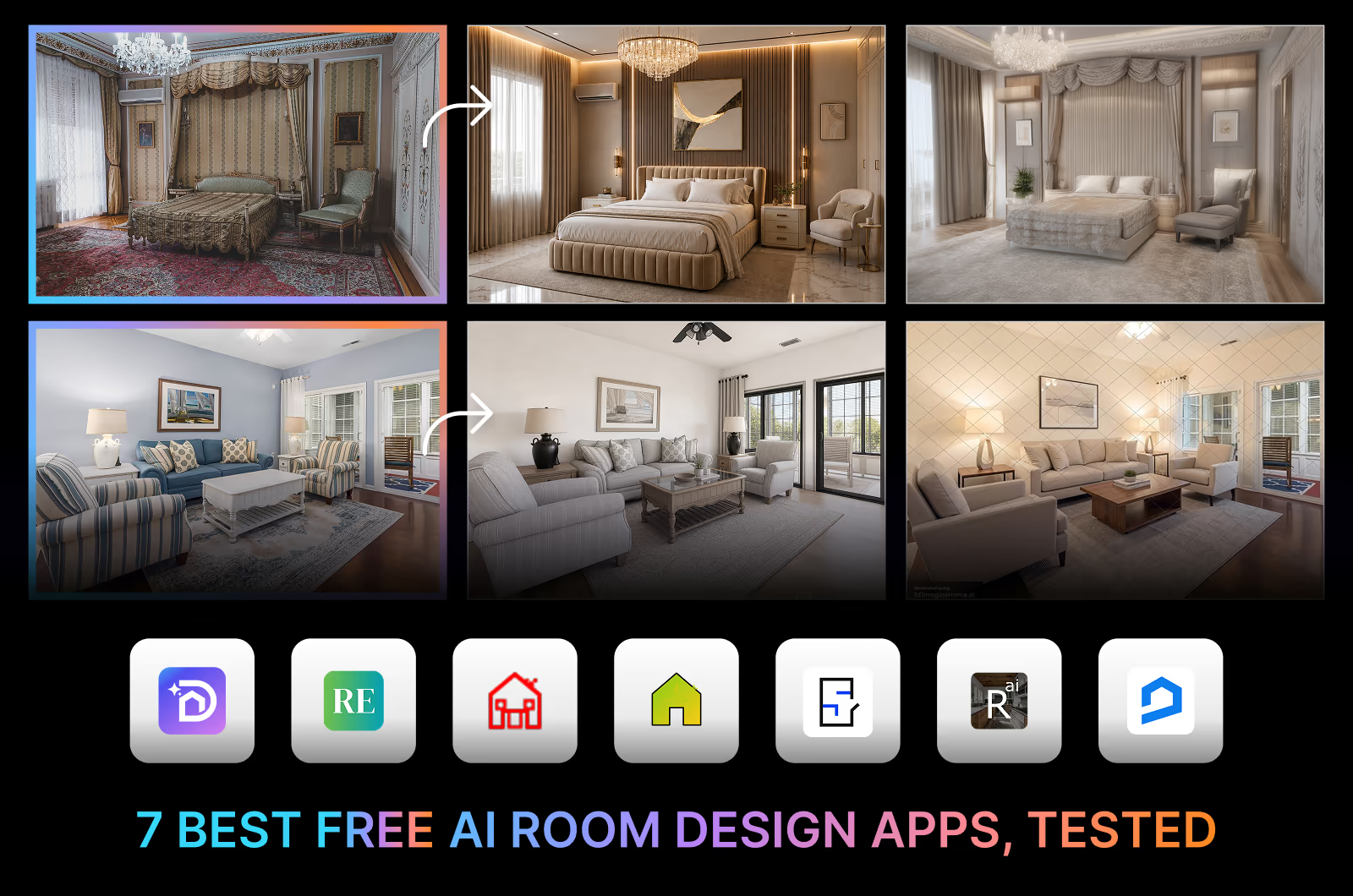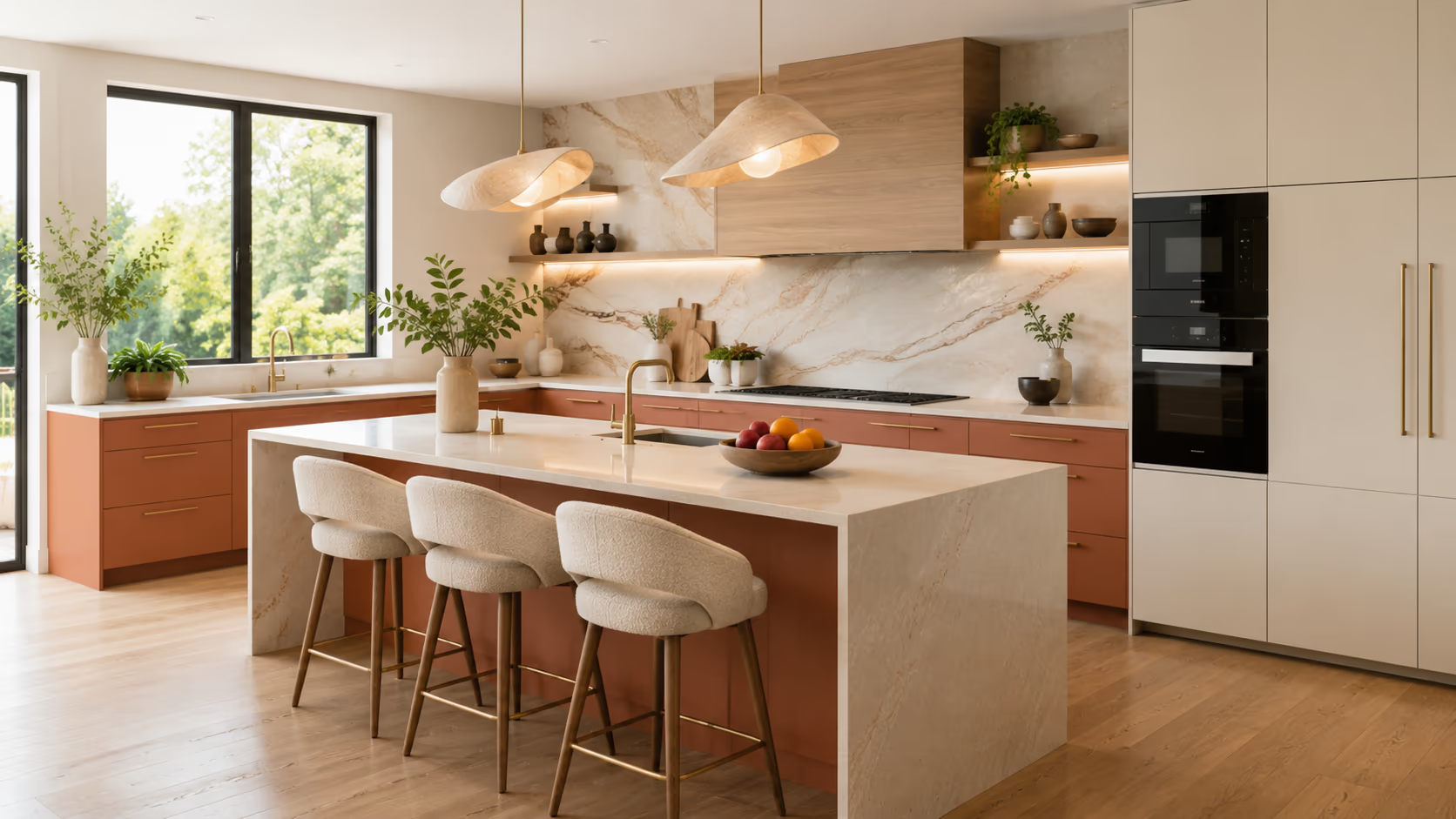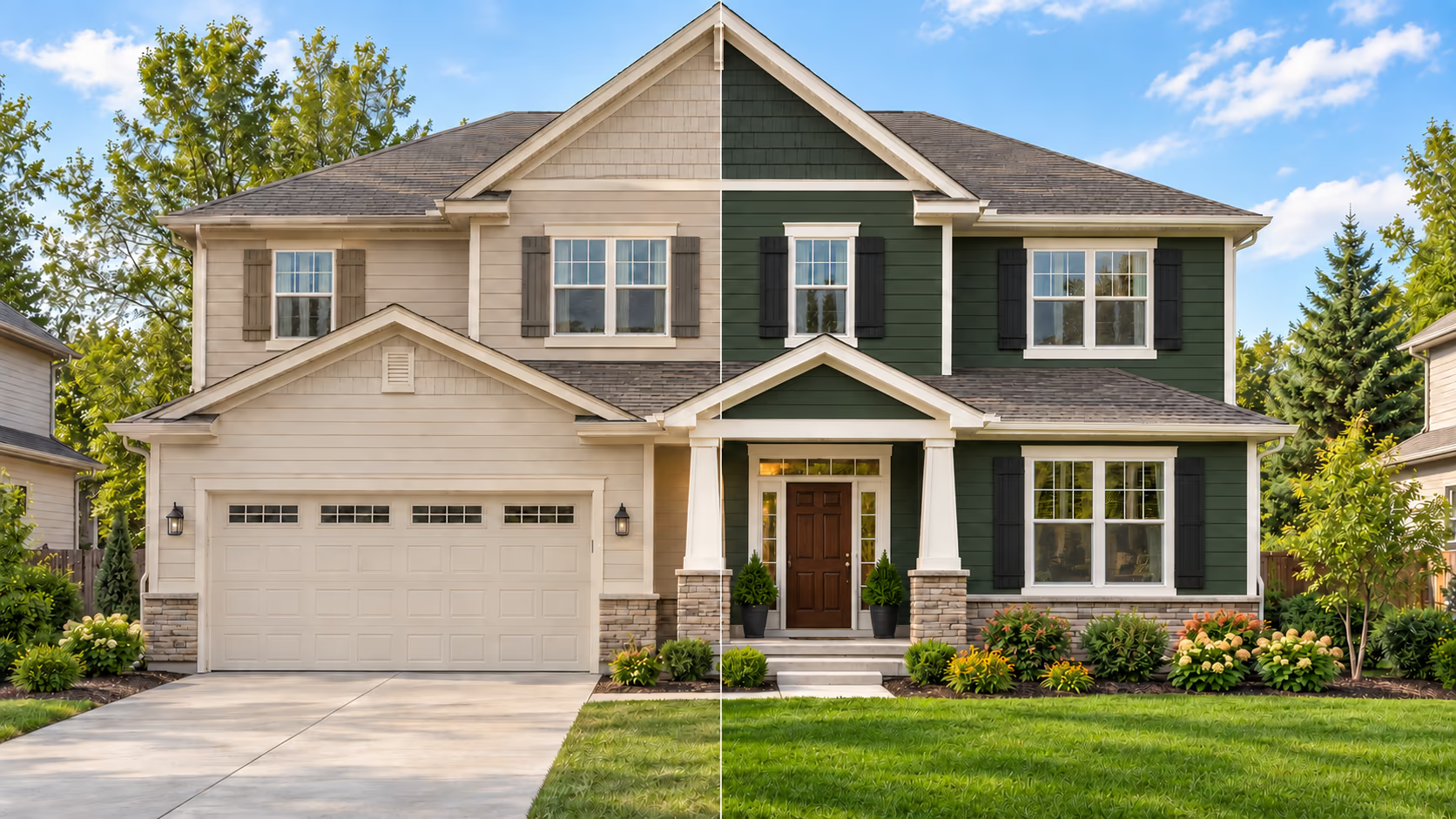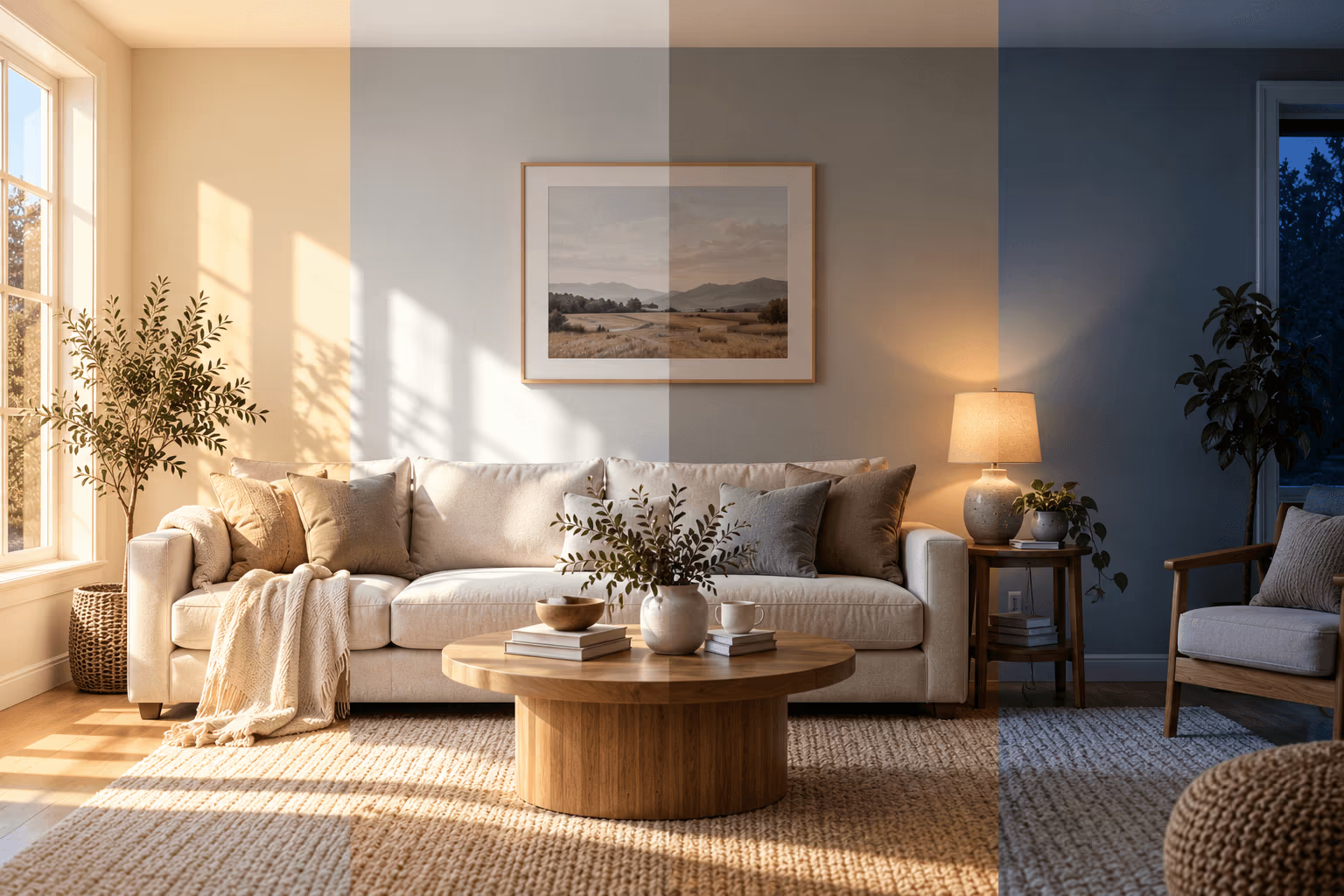
Most kitchen renovations start with hours of scrolling through inspiration photos that look nothing like your actual home. Followed by expensive consultations to see whether those ideas are even possible. AI kitchen design bridges this gap by generating realistic redesigns using a photo. Upload a photo of your current kitchen, choose a style, and see a photorealistic redesign in under 30s. It helps you test every idea before committing to a contractor.
What is AI kitchen design?
AI kitchen design is the fastest way to generate renovation ideas for kitchens. AI can turn a dated kitchen photo into a modern, furnished kitchen design in seconds. It can transform an empty room into a functional kitchen design with hundreds of style variations. The result looks like a real photograph of a finished kitchen, using your actual room's proportions, windows, and structural layout. With AI, you can visualize your imagination in your kitchen without any skill.
Who Benefits from AI kitchen design?
Homeowners, interior designers, and other real estate professionals are benefiting from it. As AI can provide fast and accurate design directions, it is getting more popular among them.
AI kitchen design generator tools are helping homeowners in many ways. It helps them visualize fresh renovation ideas before the work begins. They can visualize how a change or update can affect the look and functionality. They can stage appliances and furniture in their actual kitchen before even purchasing them. It takes only a few minutes to get overall style direction and a budget idea with AI. For homeowners who love DIY renovations themselves, AI is their best tool.
Real estate professionals like interior designers are also benefiting from AI kitchen design. They use it as a tool to generate photorealistic design proposals for their clients. Most AI kitchen design tools can generate 3D renders of kitchen layouts in seconds. So it's helping the designers skip complex 3D modeling software to generate the initial design directions. So it's saving them time by generating quick ideas.
Meet the AI Kitchen Redesign Tool
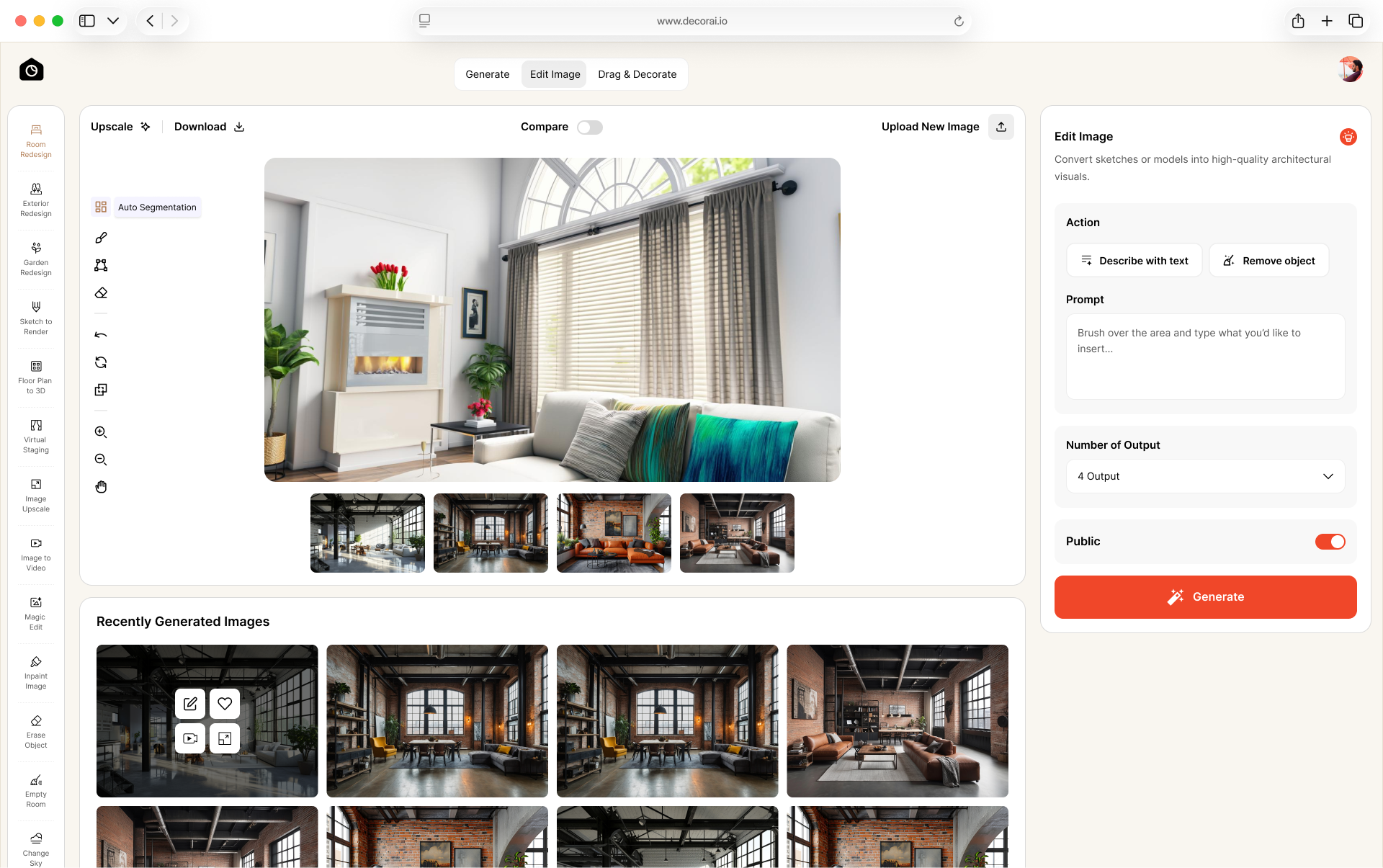
AI Kitchen Redesign is DecorAI's dedicated tool for AI kitchen design projects. The easy-to-use interface helps homeowners generate kitchen renovation ideas with no skills. The advanced presets and settings help real estate professionals achieve the best results with their projects.
Highlights of DecorAI's AI Kitchen Redesign tool:
- Layout Protection: The AI Kitchen Redesign tool preserves the original room and cabinet layouts. It analyzes the photo first, then generates the redesign with your choices. The walls, windows, door, and kitchen hood remain the same.
- Personalization: The tool has every important personalization option. You can choose styles like Modern, Japandi, Mediterranean, and more. You can select cabinet style, cabinet color, countertop materials, backsplash, flooring material, hardware options, different lighting, etc. Also, you can visualize changes with your own words by writing a prompt.
- Speed: The dedicated tool can generate a photorealistic redesign in under 30s. You can generate up to 4 variations at once.
- Unlimited Design: You can generate as many kitchen designs as you like. It applies to all DecorAI tools. There is no limit, no hidden conditions.
- Free Trial: Try AI kitchen design for free with the AI Kitchen Redesign tool. Every new DecorAI user gets a 1-day free trial with 3 AI designs. See full pricing.
AI Kitchen Design From Photo
A kitchen renovation with AI requires only one photo. A well-lit photo can lead to functional yet beautiful redesigns in seconds.
DecorAI's AI Kitchen Redesign tool handles this in a few steps:
- Upload your kitchen photo. Go to your DecorAI Dashboard and upload the kitchen photo.
- Open the AI Kitchen Redesign Tool: Select the AI Kitchen Redesign Tool and open it.
- Choose your mode and settings. For a quick redesign, use the default "Simple" mode and choose your presets. For more control and presets, switch to "Pro mode" and specify each element.
- Set the AI creativity level. Choose among Strict, Precise, Balanced, Creative, and Imaginative. Strict follows your choices exactly, and Imaginative redesigns with full freedom.
- Generate up to 4 variations. Generate your kitchen redesigns. You can generate up to 4 different variations within your selected choices.
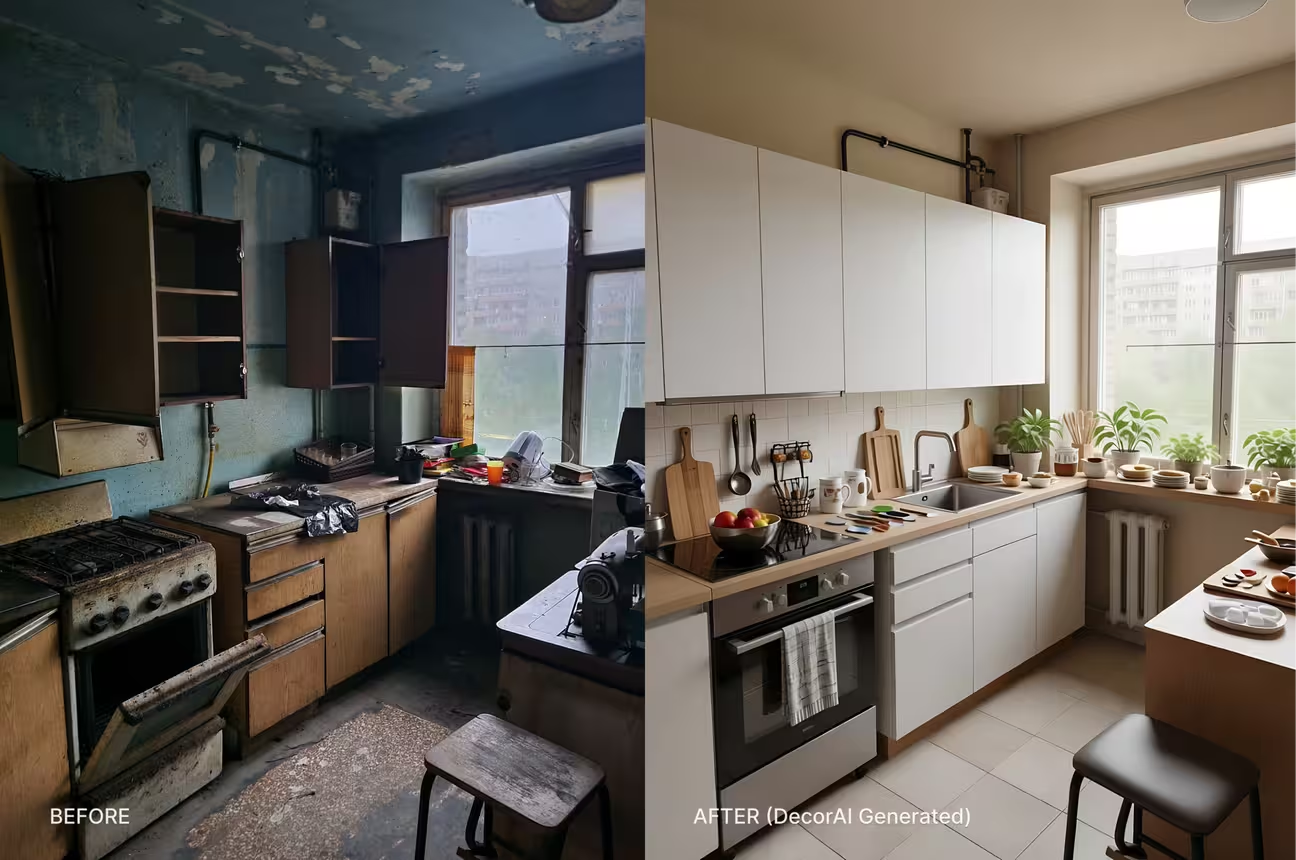
The results are not generic kitchen concepts. They are your kitchen with new design directions. If you want to make edits to your generated design, you can use 10+ post-production editing tools within the dashboard. Here is an example of a kitchen style transformation.
Explore Styles Without Committing
Style is one of the biggest decisions in AI kitchen design. During a kitchen renovation, selecting an interior style can be a challenge. You can't buy new furniture or appliances until the style is confirmed. Modern or farmhouse? Japandi or transitional? These decisions feel abstract until you can stage them in your actual kitchen. AI makes it easy to find the perfect style.
You can do it in 2 ways:
- Using the AI Kitchen Redesign presets: You can visualize your kitchen in 10 different interior styles available in the presets panel.
- Style Swap: It's a dedicated tool to swap interior styles. The AI Style Swap tool works this way:
- Open the AI Style Swap tool
- Upload your kitchen photo or select a generated design
- Choose a style
- Generate up to 4 variations.
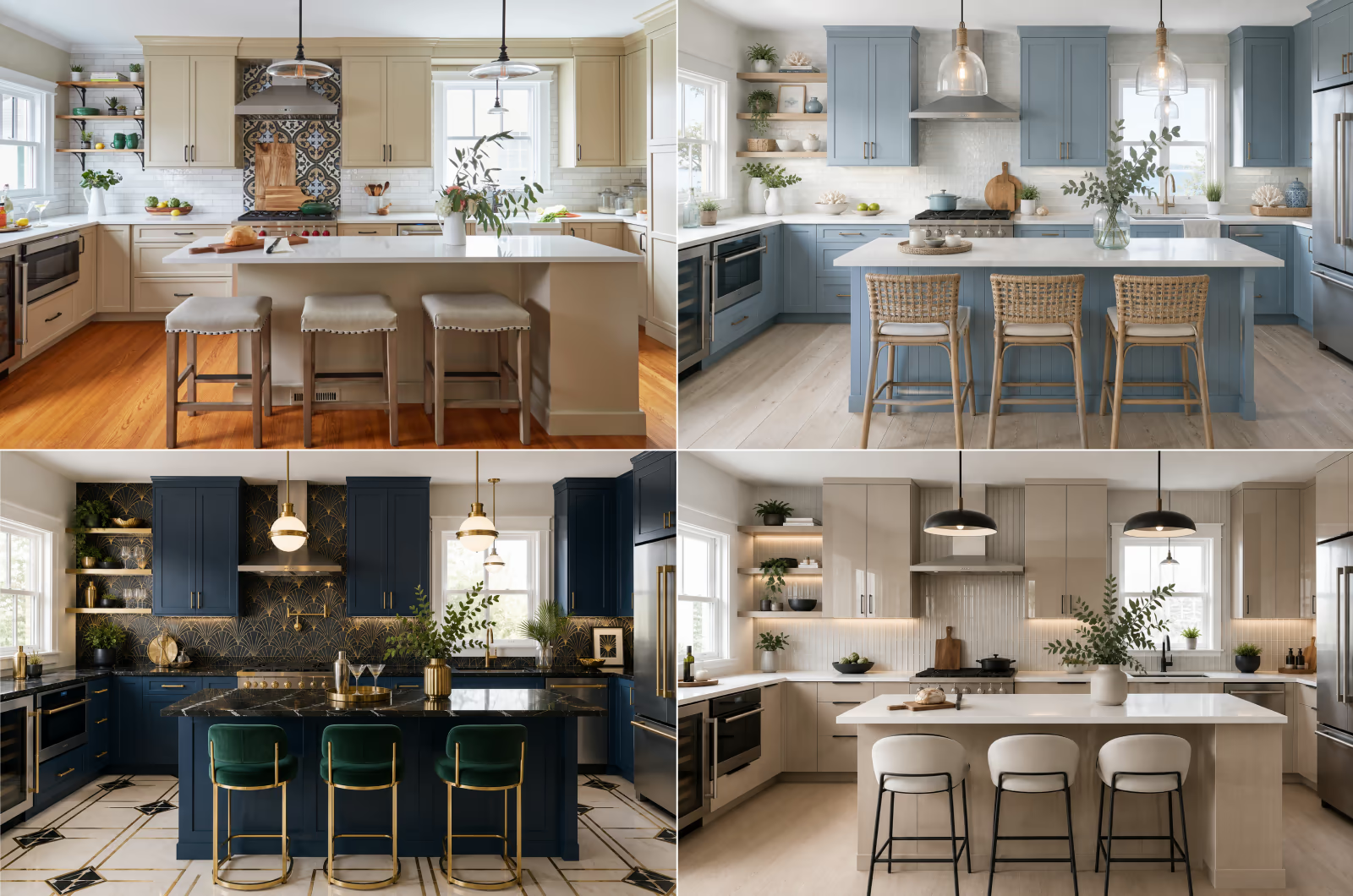
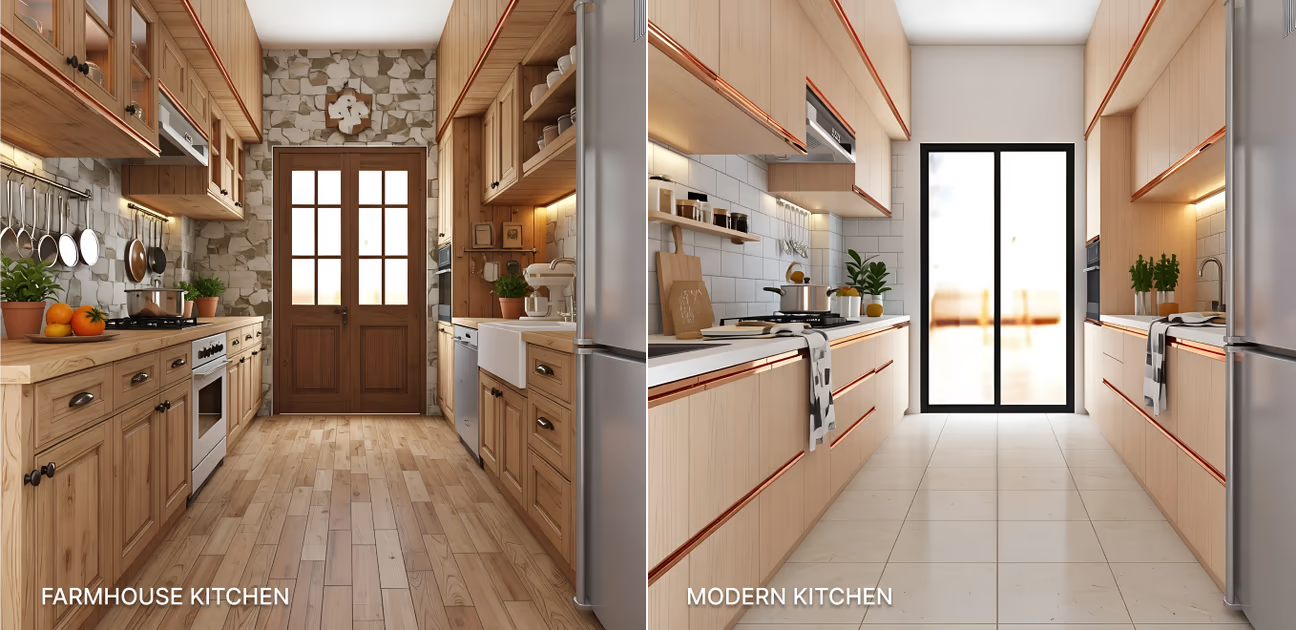
You can apply 54 distinct styles to your kitchen design. See how a kitchen decor can be staged in multiple styles. The primary components are the same; only the color and style change.
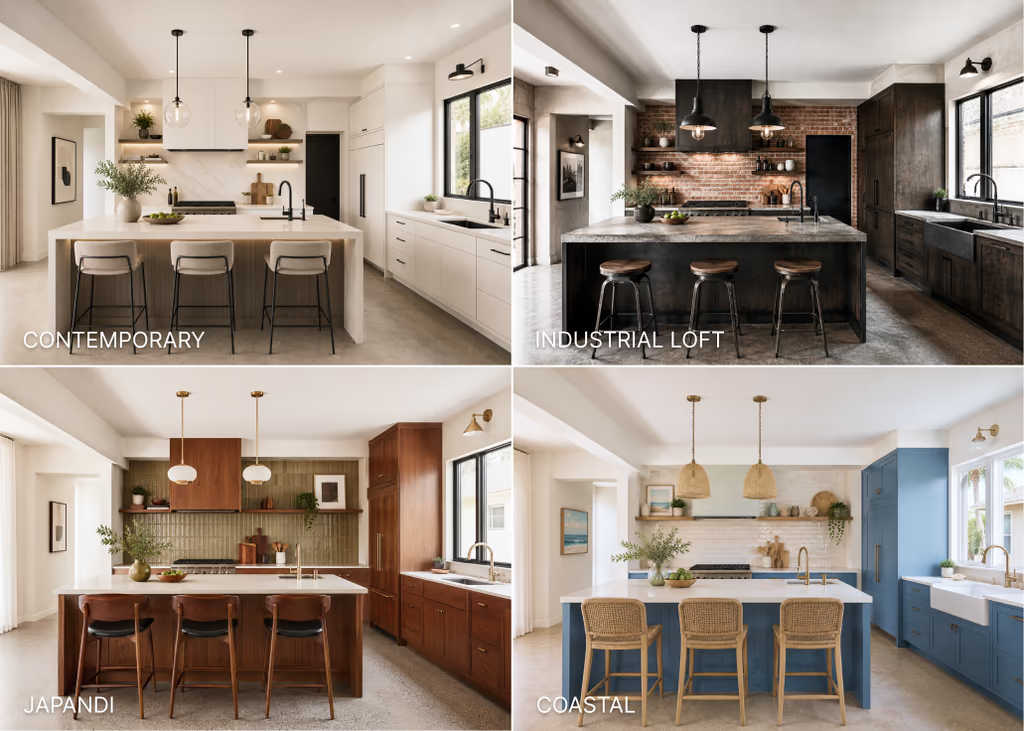
For more details on what defines each of these style directions and how to choose between them, the modern kitchen design guide covers all the sub-styles.
Once you have a style comparison in front of you, the decision becomes visual rather than theoretical.
Try to match the overall interior style of your house. Or you can complement a new style that looks good with the current one. You can try the following combinations:
- Contemporary + Minimalist
- Scandinavian + Hygge
- Japandi + Organic Modern
- Modern Farmhouse + French Country
- Industrial + Mid-Century Modern
- Coastal + Hamptons
Empty The Room and Redesign
Sometimes you do not want to redesign what is already there. You want to start completely fresh, with a clean room. This is one of the most flexible AI kitchen design workflows. It takes only two steps:
Step 1: Empty the room
- Open the AI Empty Room tool from your DecorAI dashboard
- Upload a photo of your current kitchen, regardless of how dated or cluttered it looks
- Click Generate and see the room empty
The tool strips the room of all existing elements: cabinets, appliances, countertops, and finishes. What remains is a clean, empty version of your actual space with the walls, windows, ceiling height, and floor proportions intact.
Step 2: Bring the empty room into the AI Kitchen Redesign tool
- Open the AI Kitchen Redesign Tool
- Select Work with a Past Image
- Click on the Generated Images tab
- Select the empty room you just generated
From here, follow the same steps described earlier in the AI Kitchen Design from Photo section. The result is a genuinely new kitchen, built inside your real room.
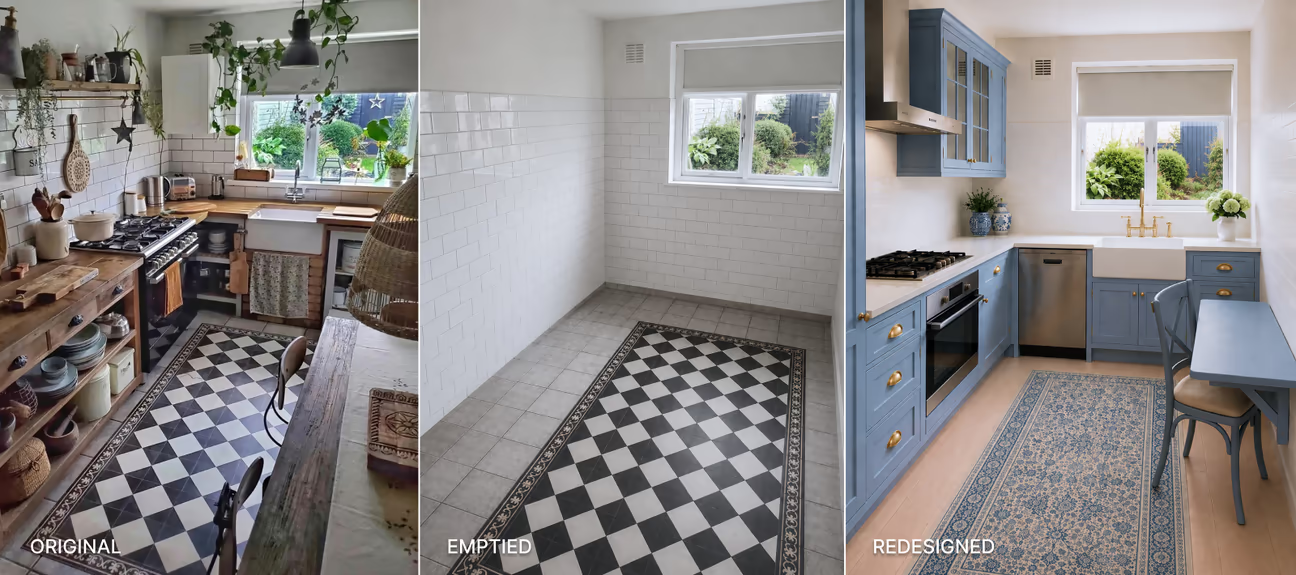
The collage above shows an original dated and rustic kitchen on the left. The photo in the middle is the emptied state of the kitchen room. The photo on the right is a modern farmhouse kitchen staged in the emptied room. All these transformations keep the original room. This way, a complete renovation of a kitchen can be visualized in seconds. No design skills or expert support is needed.
Some people want their imaginations to become reality. DecorAI has the perfect tool for that.
Turn a Sketch Into a Real Kitchen
AI kitchen design can be done without a real photo. A hand-drawn sketch is enough to get started. DecorAI's AI Sketch to Render tool turns a sketch into a photorealistic design in seconds.
The process is simple:
- Open the AI Sketch to Render tool
- Upload your sketch
- Choose your preferences and styles, or write a prompt
- Generate
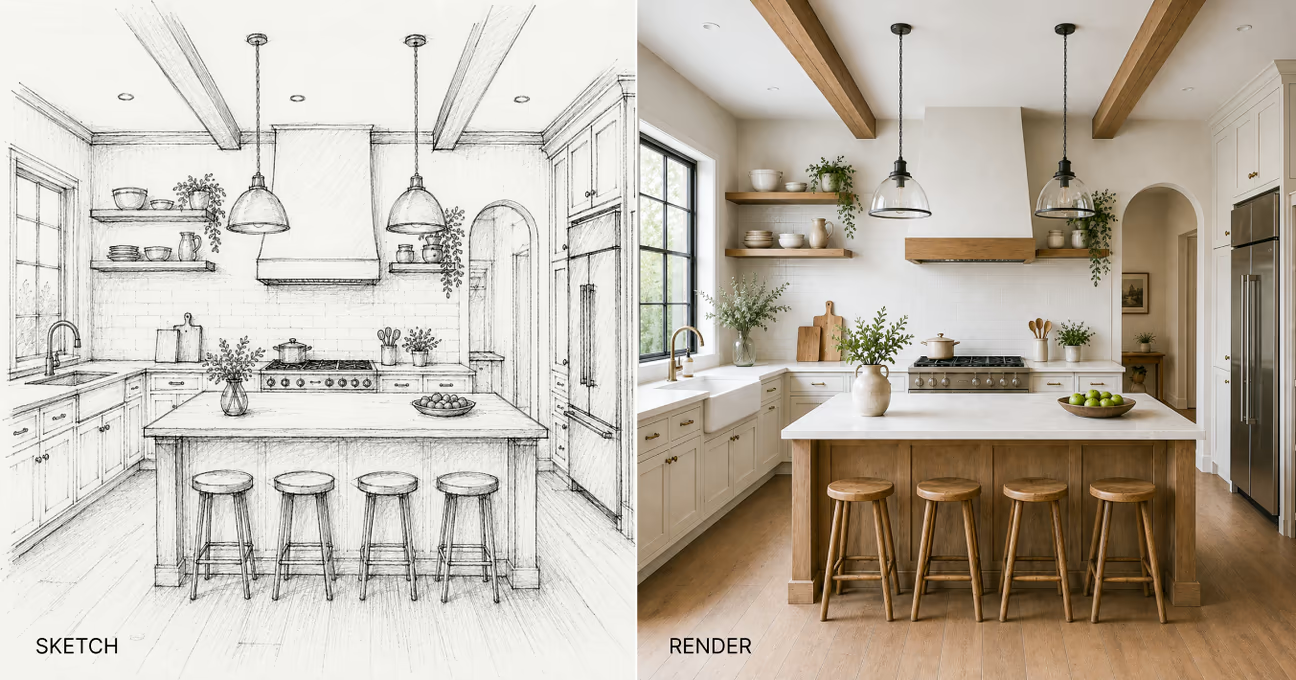
Here's an example of transforming a sketch into a photorealistic kitchen design. The rendered kitchen on the right shows every single detail, element, and appliance exactly how they were sketched.
How to Get the Best Results
A few practical tips that make a meaningful difference to the quality of your results.
- Take the best photo: Natural light, full room in frame, no strong shadows across the main surfaces. A photo taken mid-morning with the kitchen lights off and window light filling the space works best. See 6 pro tips for photographing interiors.
- Use Pro mode: If you know you want Shaker cabinets in warm white with a marble countertop and brushed brass hardware, specify each element in Pro mode. The more specific you are, the closer the result will be to what you actually want.
- Try different Creativity levels: The level "Balanced" respects your kitchen's structure while giving the redesign a genuine visual impact. Once you have a direction you like, try generating the same settings at the Imaginative level to see a more dramatic visualization. Use Strict if you are working with a contractor and need the AI to stay very close to the original layout.
- Iterate for more directions. DecorAI produces up to four results per generation. Each run generates new design directions. Iteration helps you find what you are truly looking for.
Use the result as a brief. The most practical use of an AI kitchen design is not as a finished plan but as a communication tool. Share your best result with a contractor, a kitchen supplier, or a designer. It tells them exactly what direction you want, eliminates guesswork, and gives everyone a concrete visual to align on before any decisions are finalized.
Explore real kitchen redesigns to see what the tools generate across different kitchen types, sizes, and style directions.
Frequently asked questions
Go to DecorAI.io, upload a photo of your kitchen, select the AI Kitchen Redesign tool, choose a style, and Generate up to 4 photorealistic results in seconds. No design skill is needed.
DecorAI is the best free AI kitchen design tool. It generates photorealistic kitchen designs without affecting room layout. Try it free and generate 3 AI kitchen designs from your photo.
Yes, AI can transform small kitchen designs. You can transform One-wall, Galley, L-shaped, U-shaped, and other small sized kitchens.
It takes less than 30s to design a kitchen with DecorAI. You can generate up to 4 designs at a single run.
Final Thoughts: Your Kitchen, Your Choice
AI kitchen design shows you your new kitchen before you build it. You don't have to guess anymore.
You can start with a photo of your kitchen. You can try different styles. You can clear the room and start fresh. Every option does the same thing: it lets you see the result first.
This saves you money and time. House Beautiful explains what a kitchen remodel costs in 2026. When you show a contractor a real picture, they understand you faster. There is less confusion. You also feel more confident about your choices because you have already seen them work in your own kitchen.
You don't need a full plan to begin. Just upload one photo. Try one style. See what changes.
Design Your Kitchen From a Photo
Upload a kitchen photo, choose a style, and see your redesigned kitchen in 30 seconds with DecorAI.